Complete Workflow Guide
This guide walks you through every step of the RRational workflow — from opening the app to exporting publication-ready HRV results.
Recommended: Scientific Workflow (Quigley 2024)
This workflow follows professor-reviewed best practices:
- Import → Load data and verify participant detection
- Inspect → Visual tachogram review for each participant
- Segment → Time-based segmentation (5 min windows)
- Detect → Run artifact detection on all validated sections
- Assess → Per-segment quality grading — exclude segments with >10% artifacts
- Analyze → HRV metrics on clean, assessed segments
- Report → Always include: beat count, artifact rate, quality grade
Step 1: Launch & Create a Project
1.1 Start RRational
The app opens at http://localhost:8501. You'll see the Data tab as the landing page.
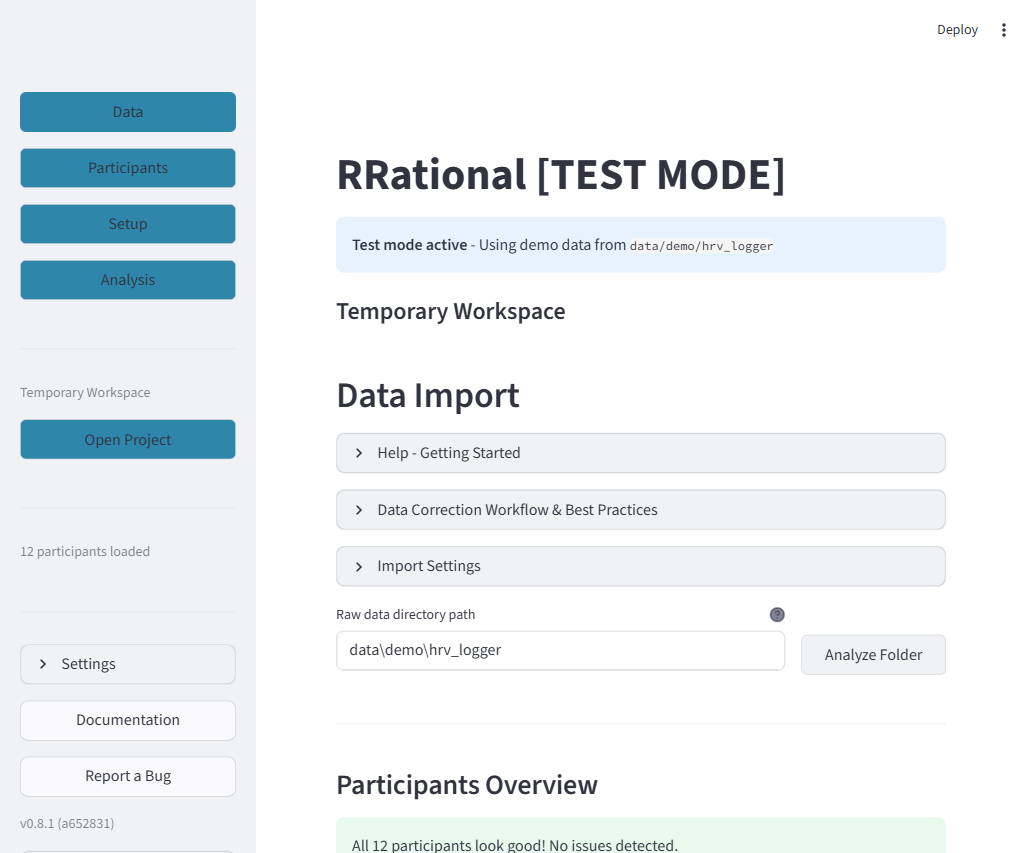
What you see: The Data Import page with three expandable help sections at the top ("Help - Getting Started", "Data Correction Workflow & Best Practices", "Import Settings"). Below is the Raw data directory path input field and the "Analyze Folder" button. In the sidebar (left): navigation buttons, project info, and at the bottom: Settings, Documentation, and Report a Bug.
Sidebar buttons explained:
| Button | What it does |
|---|---|
| Data / Participants / Setup / Analysis | Switch between the four main tabs |
| Open Project (or Switch Project) | Open or switch to a different project |
| Settings | Expand to change plot resolution, colors, and data folder |
| Documentation | Opens the RRational documentation website |
| Report a Bug | Opens GitHub Issues to file a bug report |
Data tab buttons explained:
| Button / Element | What it does |
|---|---|
| Analyze Folder | Scans the raw data directory and loads all participant recordings |
| Help - Getting Started | Expandable section with usage instructions |
| Data Correction Workflow | Expandable section explaining the recommended correction pipeline |
| Import Settings | Expandable section to configure ID patterns, file formats, and import options |
1.2 Create a Project
On the Welcome Screen (or via "Open Project" in the sidebar):
- Click "Create New Project"
- Click "Browse" → choose a folder (e.g.,
Documents/HRV_Studies/) - Enter a project name (e.g.,
MyStudy) - Select data sources: HRV Logger, VNS Analyse, or both
- Click "Create Project"
Copy your data first
Copy your HRV recording files into the data/raw/hrv_logger/ or data/raw/vns/ subfolder before clicking "Analyze Folder".
Step 2: Import Data (Data Tab)
2.1 Load Recordings
- Verify the Raw data directory path points to your
data/raw/folder - Click "Analyze Folder"
- Wait for the scan to complete
2.2 Participants Overview
After loading, scroll down to the Participants Overview:
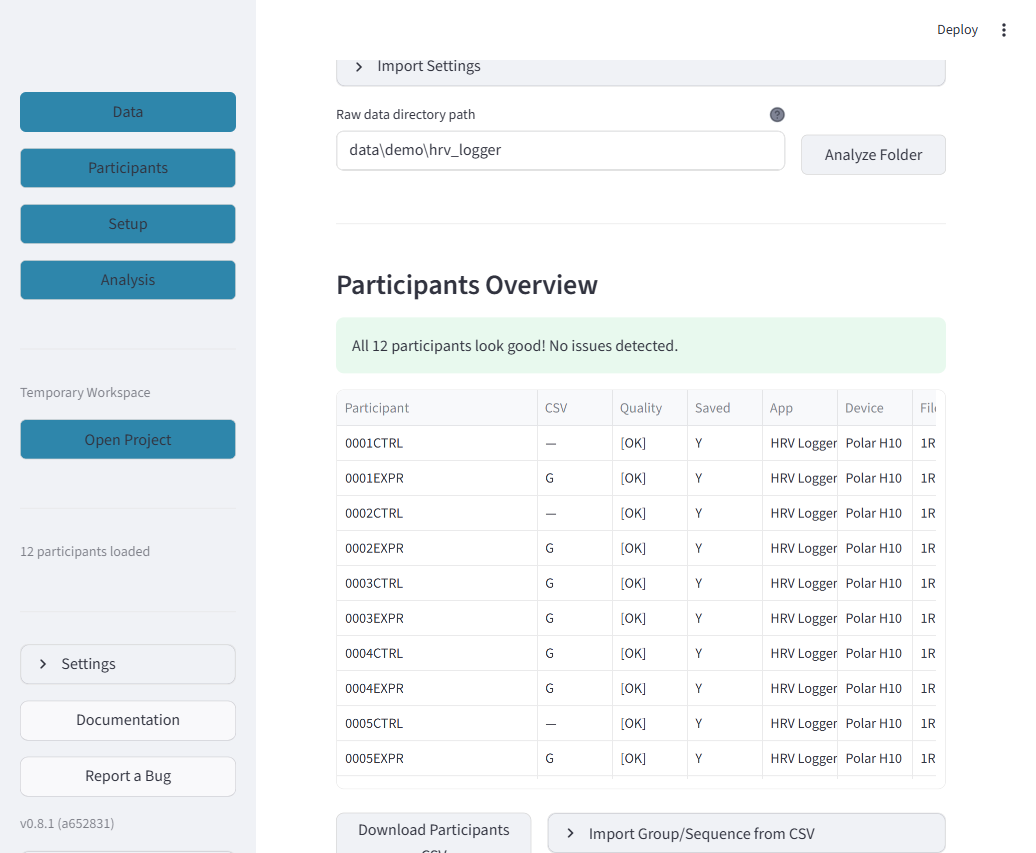
What you see: A green success bar ("All 12 participants look good!") followed by the participant table. Each row shows one participant with columns for: Participant (ID), CSV (import status), Quality ([OK] or warnings), Saved (Y/N), App (HRV Logger or VNS Analyse), Device (e.g., Polar H10), Files (number of RR/Events files), Date/Time (recording timestamp), Group (editable), Total Beats, Retained, Duplicates, Artifacts (%), and Duration (min).
Table columns explained:
| Column | Meaning |
|---|---|
| Participant | Auto-extracted ID from filename (e.g., 0001CTRL) |
| Quality | [OK] = no issues, warnings indicate problems |
| Saved | Y = events have been saved to disk |
| Total Beats | Total number of RR intervals in the recording |
| Retained | Beats remaining after duplicate removal |
| Group | Study group — editable directly in the table |
2.3 Below the Table
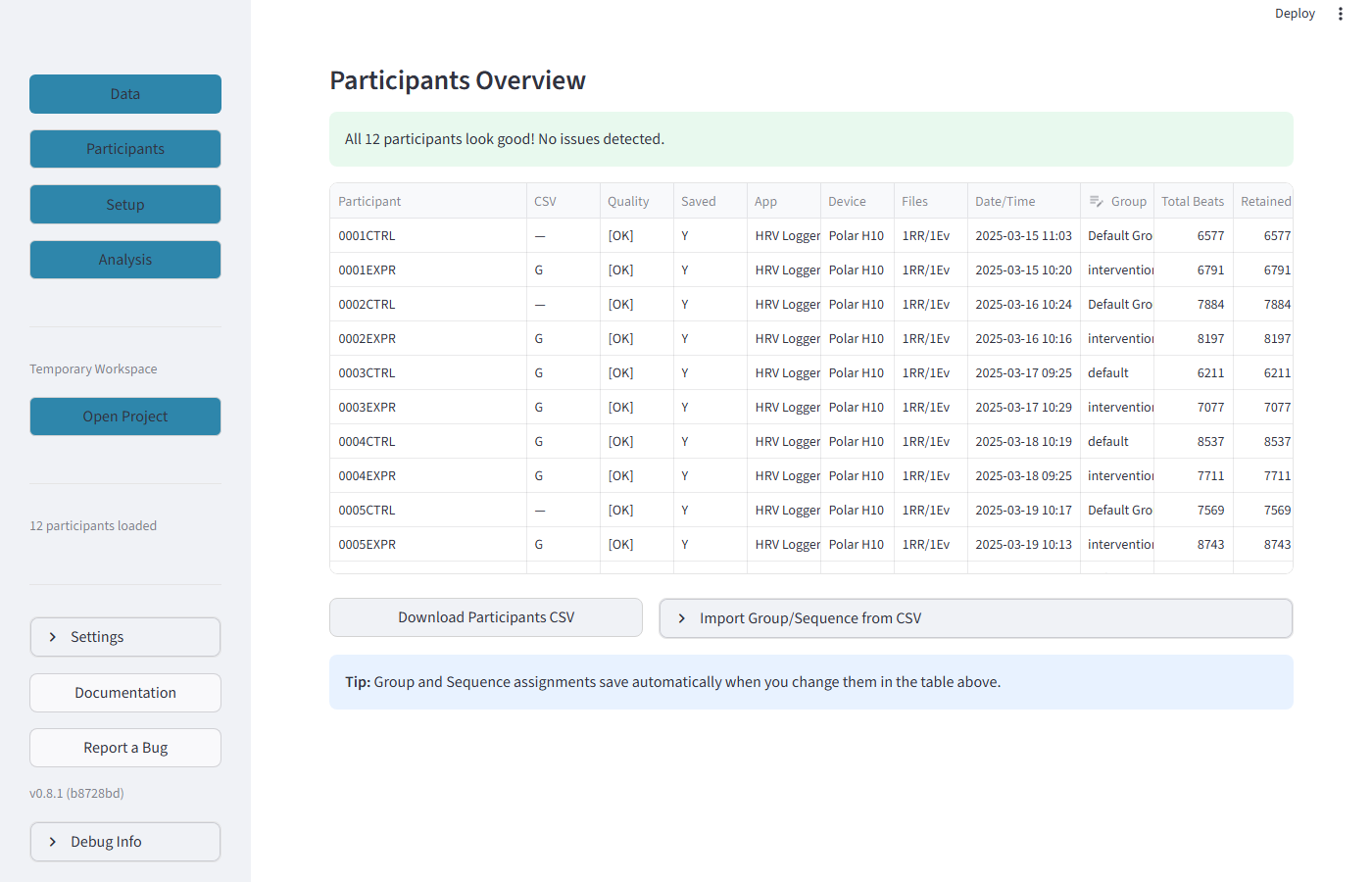
Below the table you'll find two buttons and a tip:
| Button | What it does |
|---|---|
| Download Participants CSV | Downloads the participant table as a CSV file for external use |
| Import Group/Sequence from CSV | Opens an expandable section to bulk-import group and sequence assignments from a study master CSV |
Step 3: Review Participants (Participants Tab)
Click "Participants" in the sidebar.
3.1 Participant Header
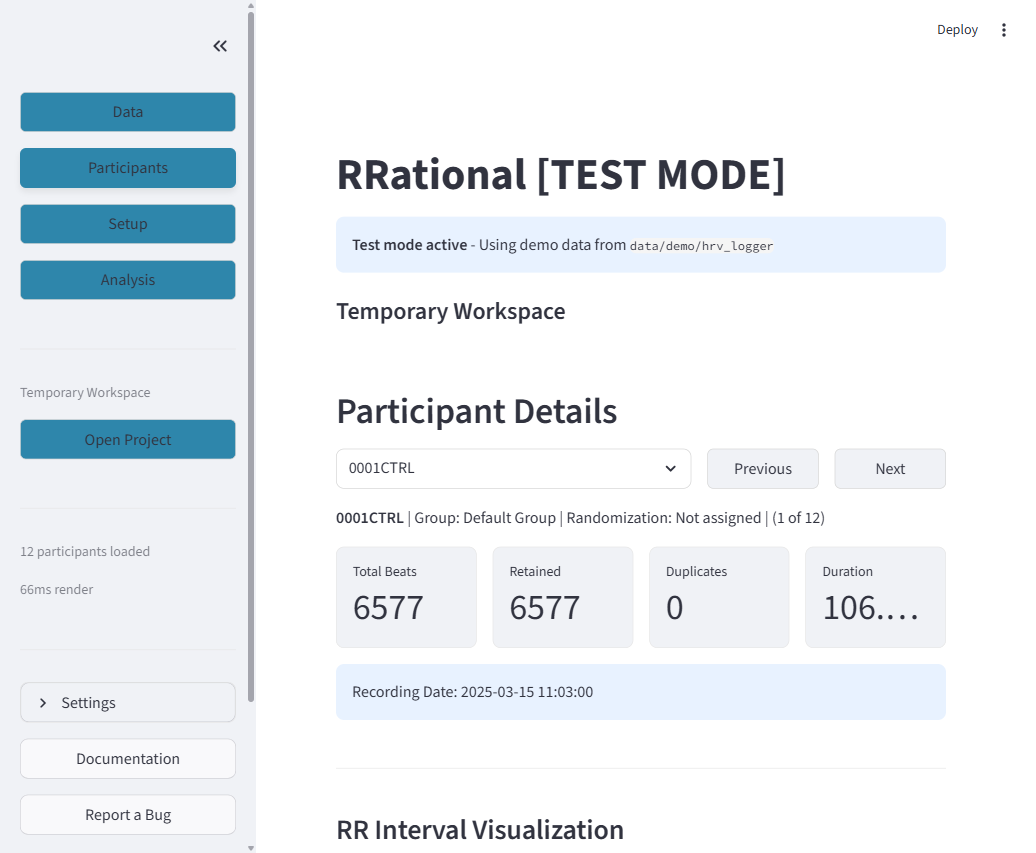
What you see: A dropdown to select a participant (e.g., "0001CTRL"), Previous and Next buttons for navigation, a summary line ("Group: Default Group | Randomization: Not assigned | 1 of 12"), and four metric cards.
Metric cards explained:
| Card | Meaning |
|---|---|
| Total Beats | Total RR intervals in the recording |
| Retained | Beats kept after duplicate removal |
| Duplicates | Number of duplicate timestamps removed |
| Duration | Total recording duration in minutes |
3.2 Mode Selector & Plot Options
Below the metrics, you'll see the interaction modes and plot settings:
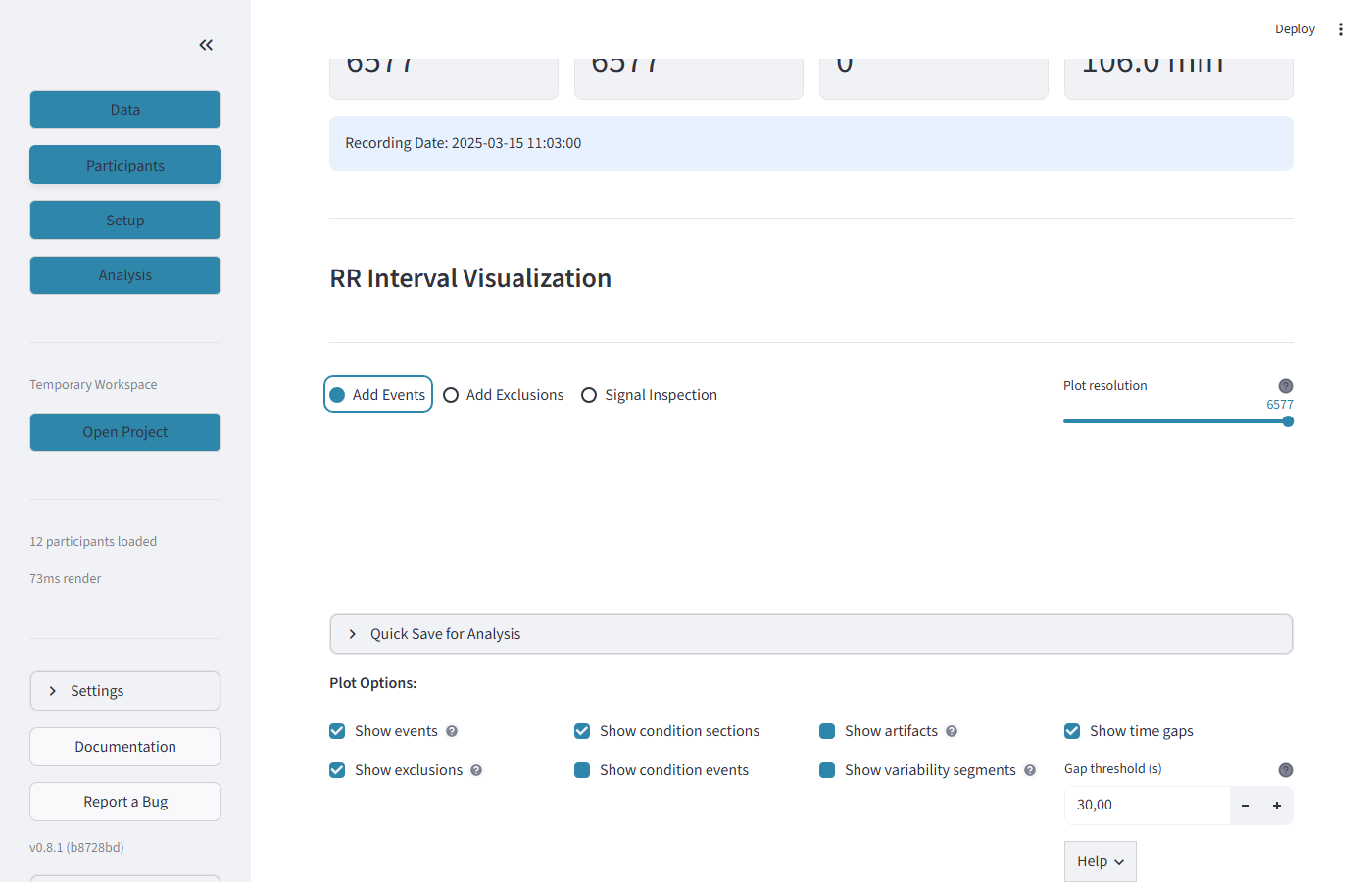
What you see: The RR Interval Visualization heading, three mode buttons ("Add Events", "Add Exclusions", "Signal Inspection"), a plot resolution selector, and the "Quick Save for Analysis" expander. Below are the Plot Options checkboxes.
Mode buttons explained:
| Mode | What it does |
|---|---|
| Add Events | Click anywhere on the tachogram to add a new event marker at that timestamp |
| Add Exclusions | Click two points on the tachogram to mark a time range for exclusion from analysis |
| Signal Inspection | Enables detailed artifact inspection with zoom and pan capabilities |
Plot Options checkboxes:
| Checkbox | What it shows/hides |
|---|---|
| Show events | Vertical dashed lines at event timestamps (measurement start, pause, etc.) |
| Show condition sections | Colored background regions for repeating experimental conditions |
| Show artifacts | Orange markers for detected artifacts — also reveals the Detect New Artifacts expander |
| Show time gaps | Gray shading for recording interruptions (HRV Logger only) |
| Show exclusions | Red shading for manually excluded time ranges |
| Show condition events | Individual start/end event markers for conditions |
| Show variability segments | Color-coded regions indicating local variability (green=stable, orange=moderate, red=high) |
Other controls:
| Control | What it does |
|---|---|
| Gap threshold (s) | Minimum gap duration (in seconds) to display. Default: 15s |
| Help | Dropdown with explanation of keyboard shortcuts and interaction modes |
| Refresh | Reloads the current participant's data and redraws the plot |
| Quick Save for Analysis | Expander to save artifact markings without full export |
3.3 The Tachogram
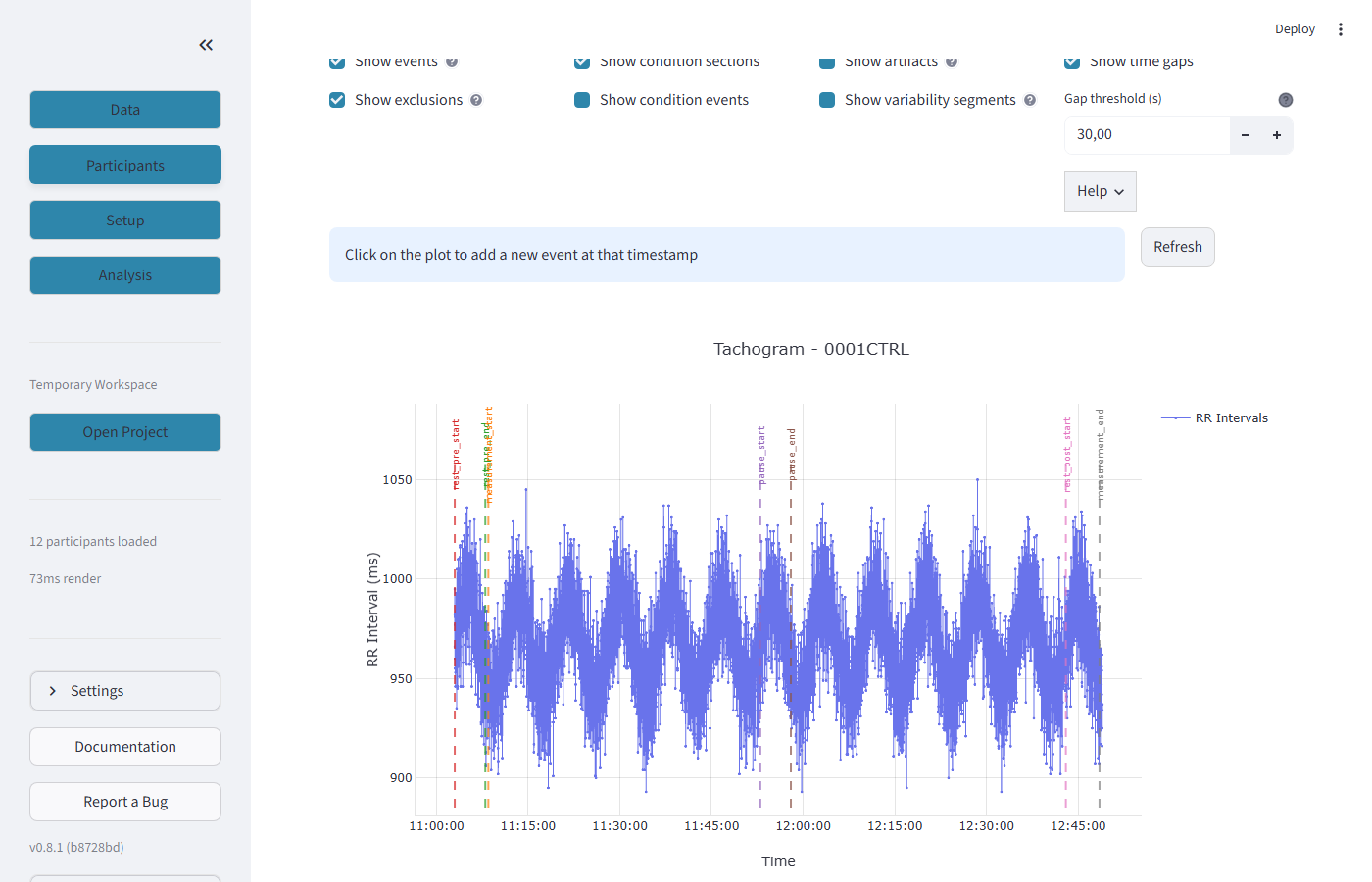
What you see: The tachogram plot with RR intervals (ms) on the Y-axis and time on the X-axis. The blue line traces the heart rhythm. Vertical dashed lines mark events. Orange dots are detected artifacts. The plot title shows "Tachogram - 0001CTRL" and the legend identifies "RR Intervals".
What to look for:
- Regular oscillations in the blue line = normal respiratory sinus arrhythmia
- Flat lines or sudden jumps = potential artifacts or movement
- Orange dots = detected ectopic, missed, or extra beats
- Dashed vertical lines = event markers (measurement start, pause, etc.)
Step 4: Artifact Detection
Why artifacts matter
Even a small number of artifacts can dramatically distort HRV metrics. Always detect and assess artifacts before analysis.
4.1 Enable Artifacts
- Check the "Show artifacts" checkbox in Plot Options
- This reveals the "Detect New Artifacts" expander below the plot
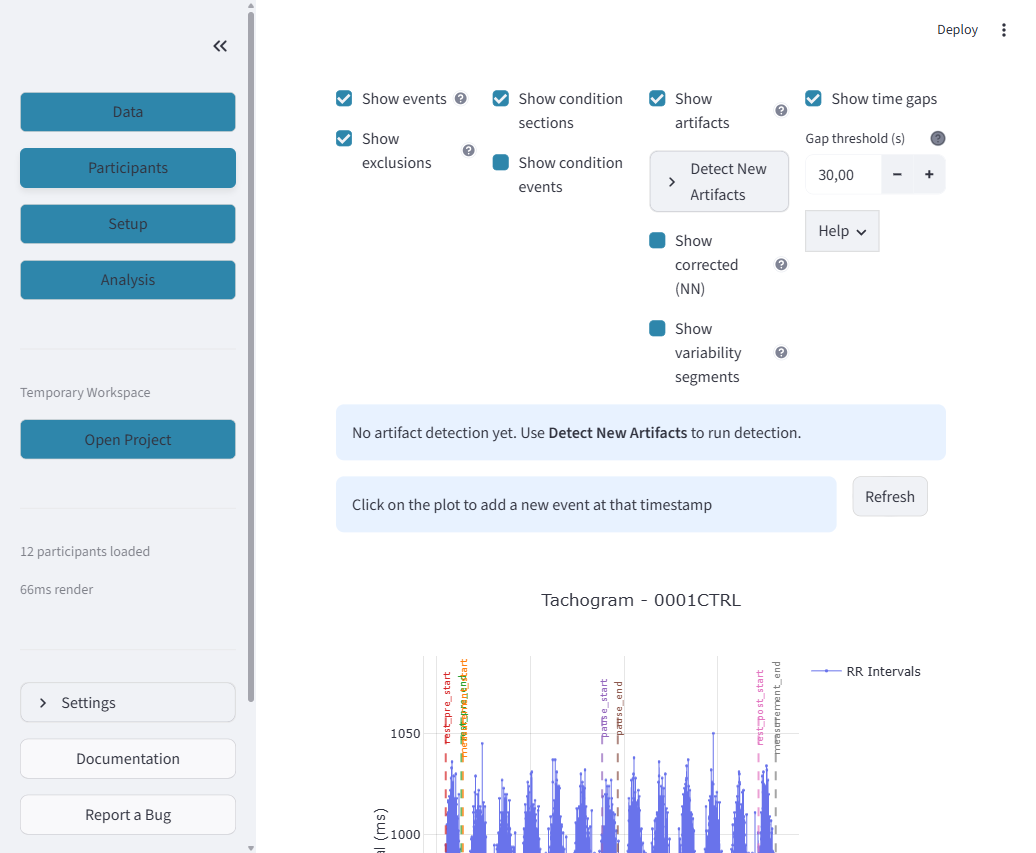
After enabling "Show artifacts", orange markers appear on the tachogram showing where the algorithm detected problematic beats.
4.2 Artifact Detection Settings
Expand "Detect New Artifacts" to configure detection:
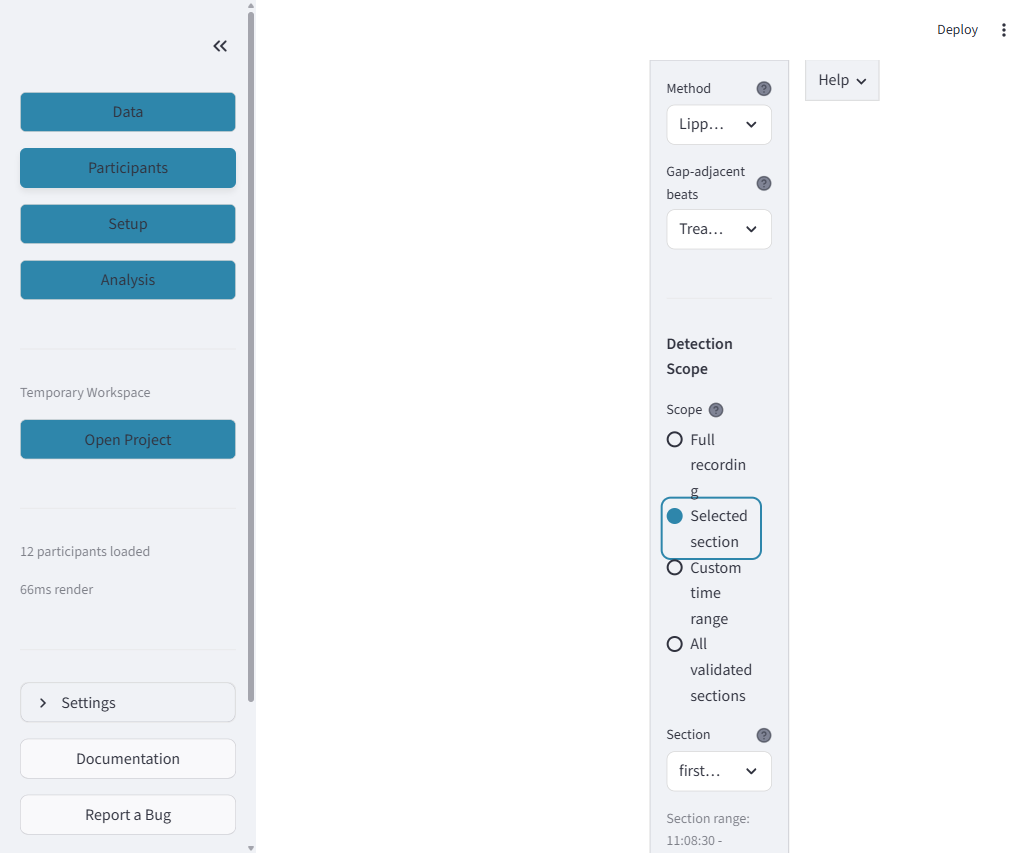
What you see: The detection panel with Method, Gap handling, Detection Scope, Section selector, and Segment Sizing options.
Settings explained:
| Setting | Options | Recommended |
|---|---|---|
| Method | Lipponen 2019 (segmented) | Lipponen 2019 — current gold standard |
| Gap-adjacent beats | Treat as segment boundaries / Include in detection | Treat as segment boundaries — prevents false positives near gaps |
| Detection Scope | Full recording / Selected section / Custom time range / All validated sections | All validated sections — ensures same segments for detection and analysis |
| Segment Sizing | Adaptive / Preset / Manual | Adaptive — automatically calculates optimal window size |
4.3 Detection Scope
The Detection Scope is critical for the scientific workflow:
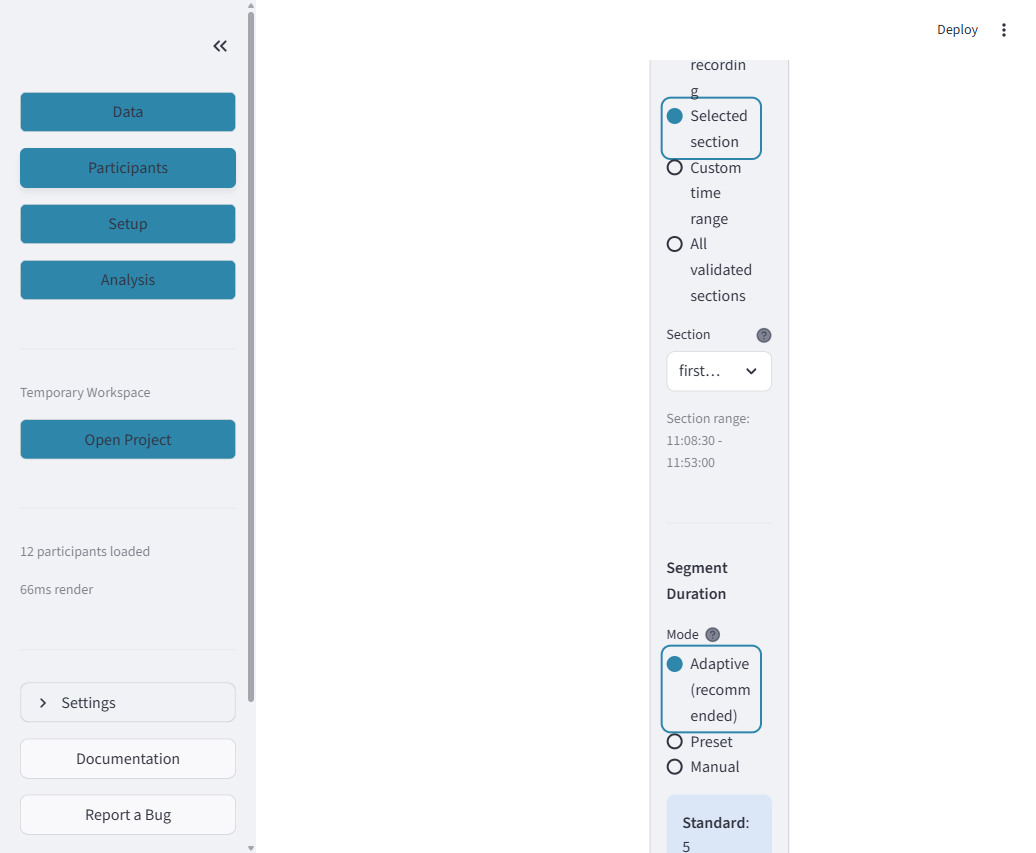
What you see: Four radio buttons for scope selection, a section dropdown (when "Selected section" is chosen), and the time range display.
| Scope | What it does | When to use |
|---|---|---|
| Full recording | Detects across the entire recording | Quick overview, exploratory analysis |
| Selected section | Detects within one specific section | When you only need one section |
| Custom time range | Manual start/end time selection | For unusual recording structures |
| All validated sections | Detects separately for each validated section | Recommended — scientific workflow |
4.4 Run Detection
Click "Run Detection" and review the results.
4.5 Section Validation & Data Integrity
Scroll down to see the Section Validation results:
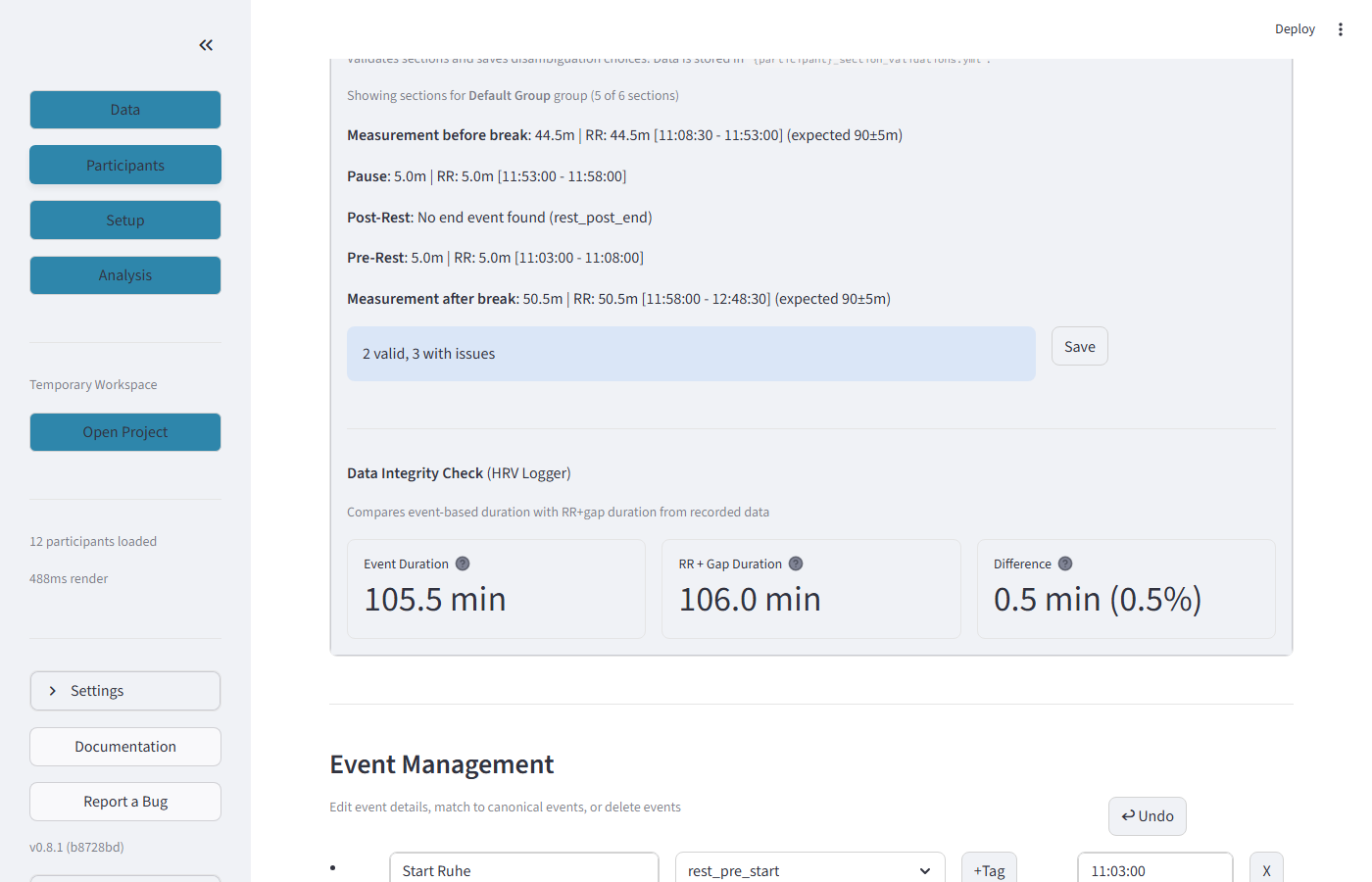
What you see: Each defined section with its validation status. For this participant: "Measurement before break" (44.5 min), "Pause" (5.0 min), "Post-Rest" (no end event found), "Pre-Rest" (5.0 min), "Measurement after break" (50.0 min). The summary shows "2 valid, 3 with issues" and a Save button.
Section validation indicators:
| Indicator | Meaning |
|---|---|
| Bold section name + duration | Section is valid, events found |
| "No end event found" | End event is missing — section cannot be analyzed |
| "expected X±Ym" | Shows expected duration with tolerance |
| 2 valid, 3 with issues | Summary of validation results |
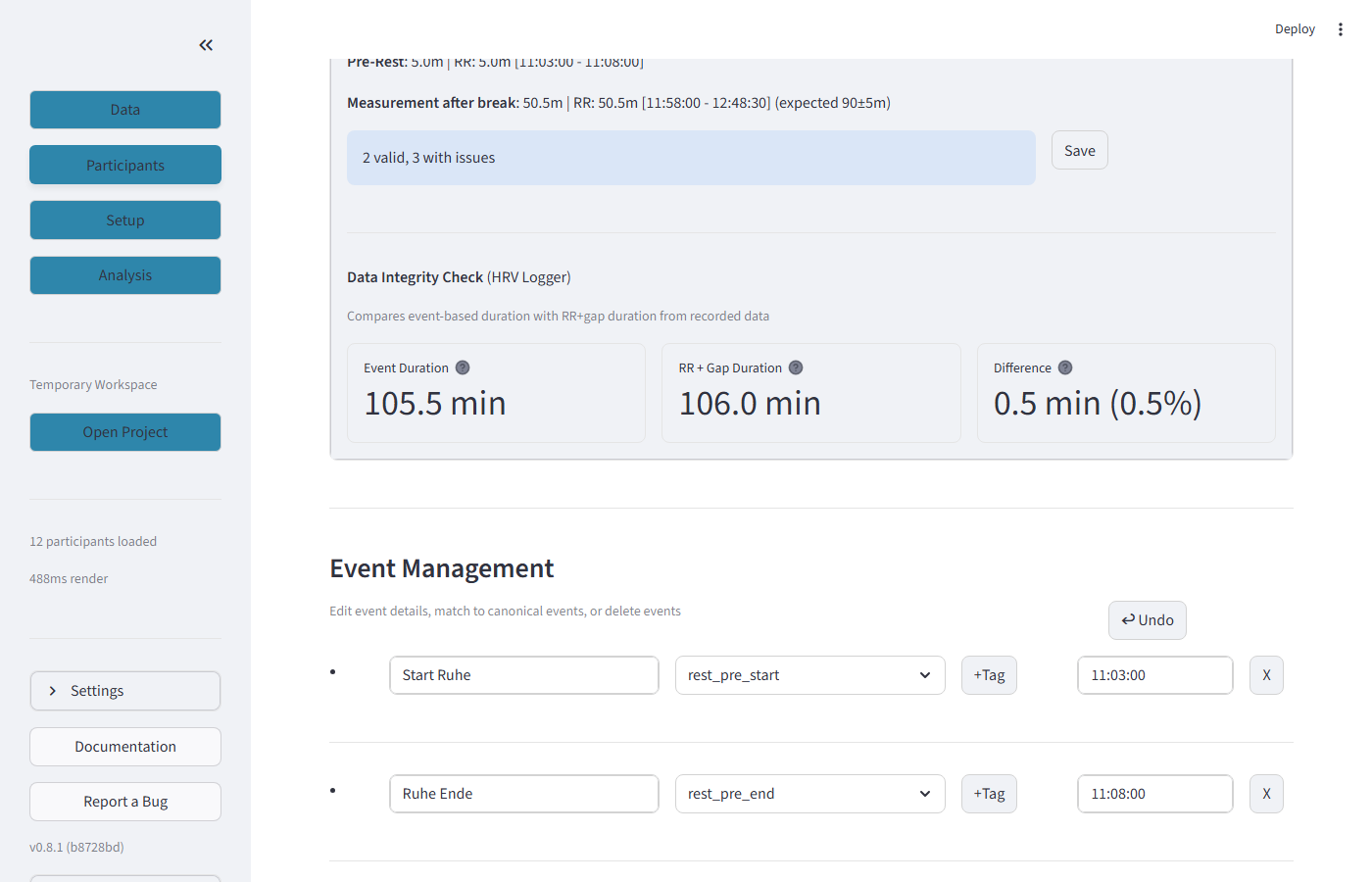
Below the section list, the Data Integrity Check compares: Event Duration (from event timestamps: 105.5 min) vs RR+Gap Duration (from summing all RR intervals and gaps: 106.0 min). The Difference (0.5 min, 0.5%) should be small — large differences indicate data corruption.
4.6 Event Management
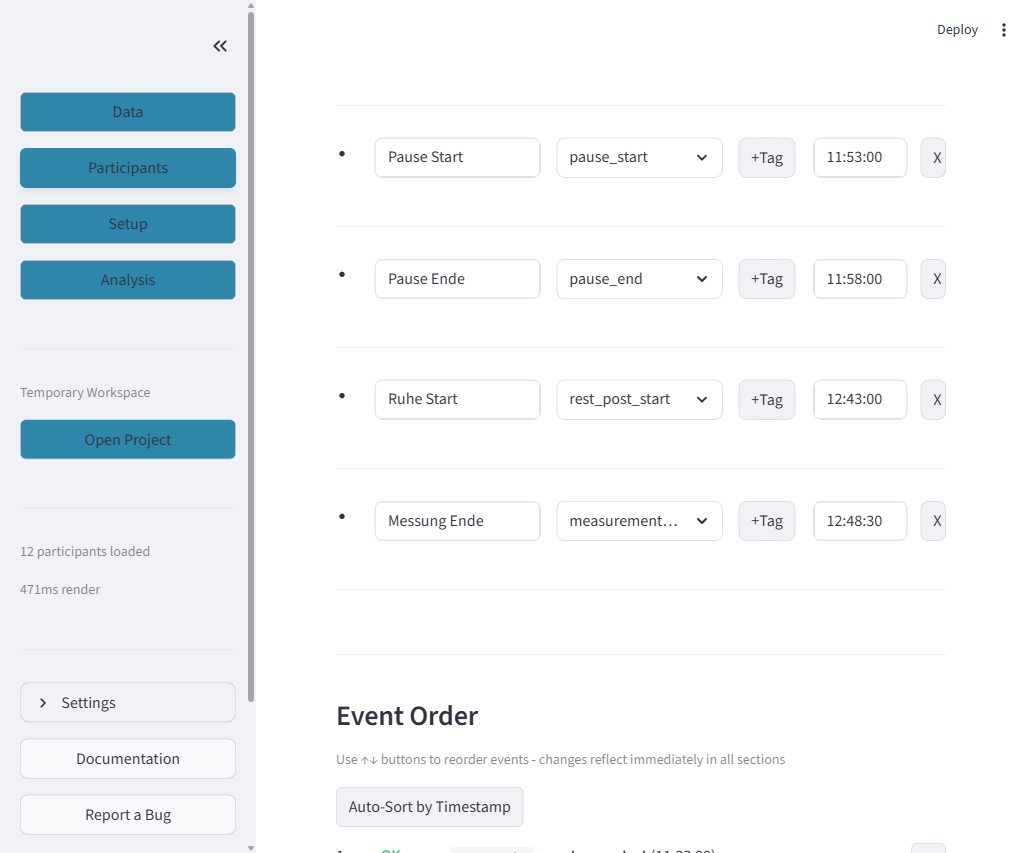
What you see: The Event Management section where you can edit, reorder, or delete events. Each event row shows: a drag handle (bullet), the raw label (e.g., "Start Ruhe"), the canonical name dropdown (e.g., "rest_pre_start"), a +Tag button, and the timestamp (e.g., "11:03:00"). The X button deletes an event.
4.7 Event List Detail
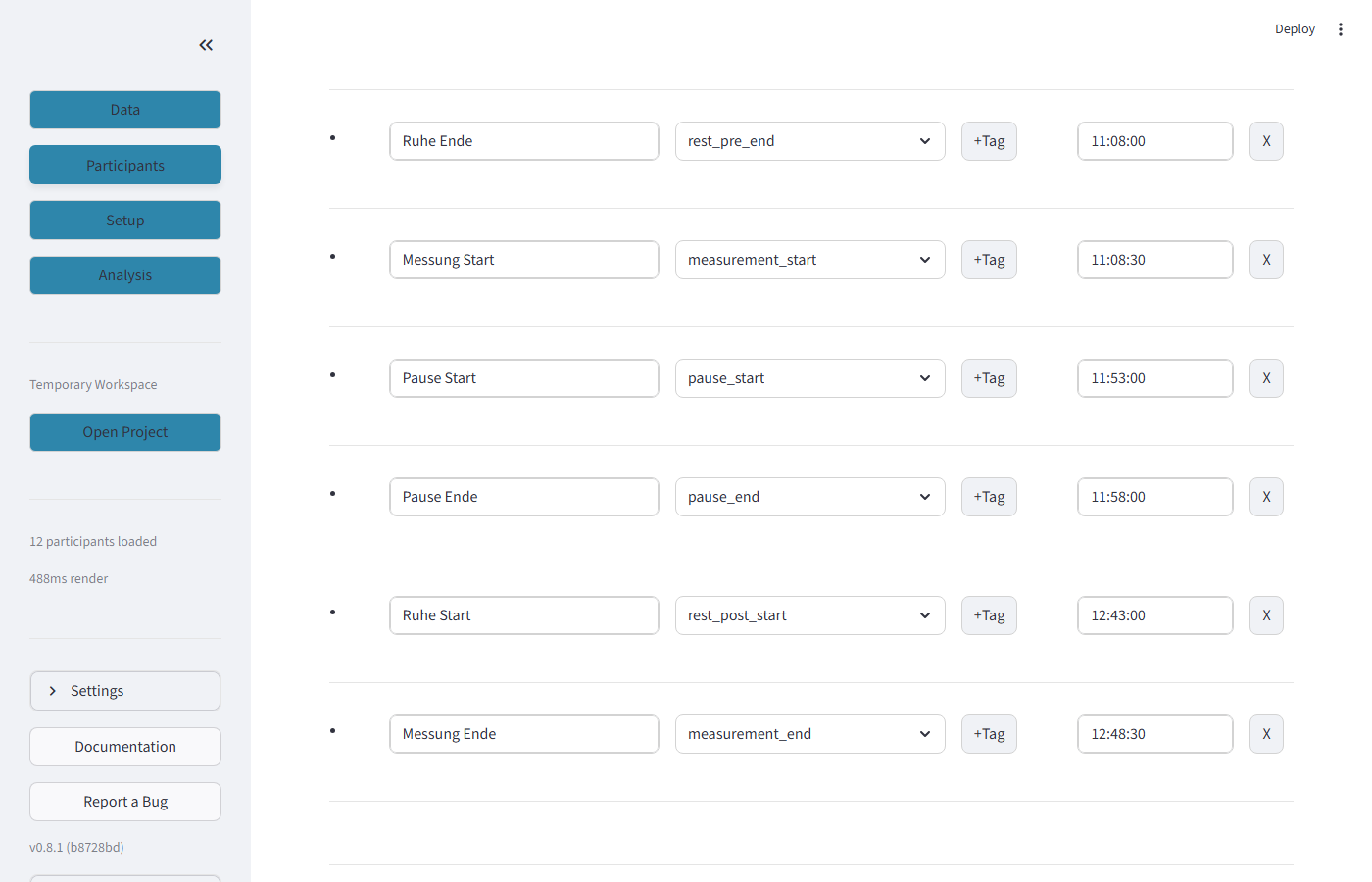
Each event in the list has:
| Element | What it does |
|---|---|
| Raw label (left text field) | The original event name from the recording file (e.g., "Ruhe Ende") |
| Canonical name (dropdown) | The standardized event name (e.g., "rest_pre_end") — used for section matching |
| +Tag button | Add a tag/label to this event |
| Timestamp (right field) | The event time (HH:MM:SS) |
| X button | Delete this event |
4.8 Event Mapping Status
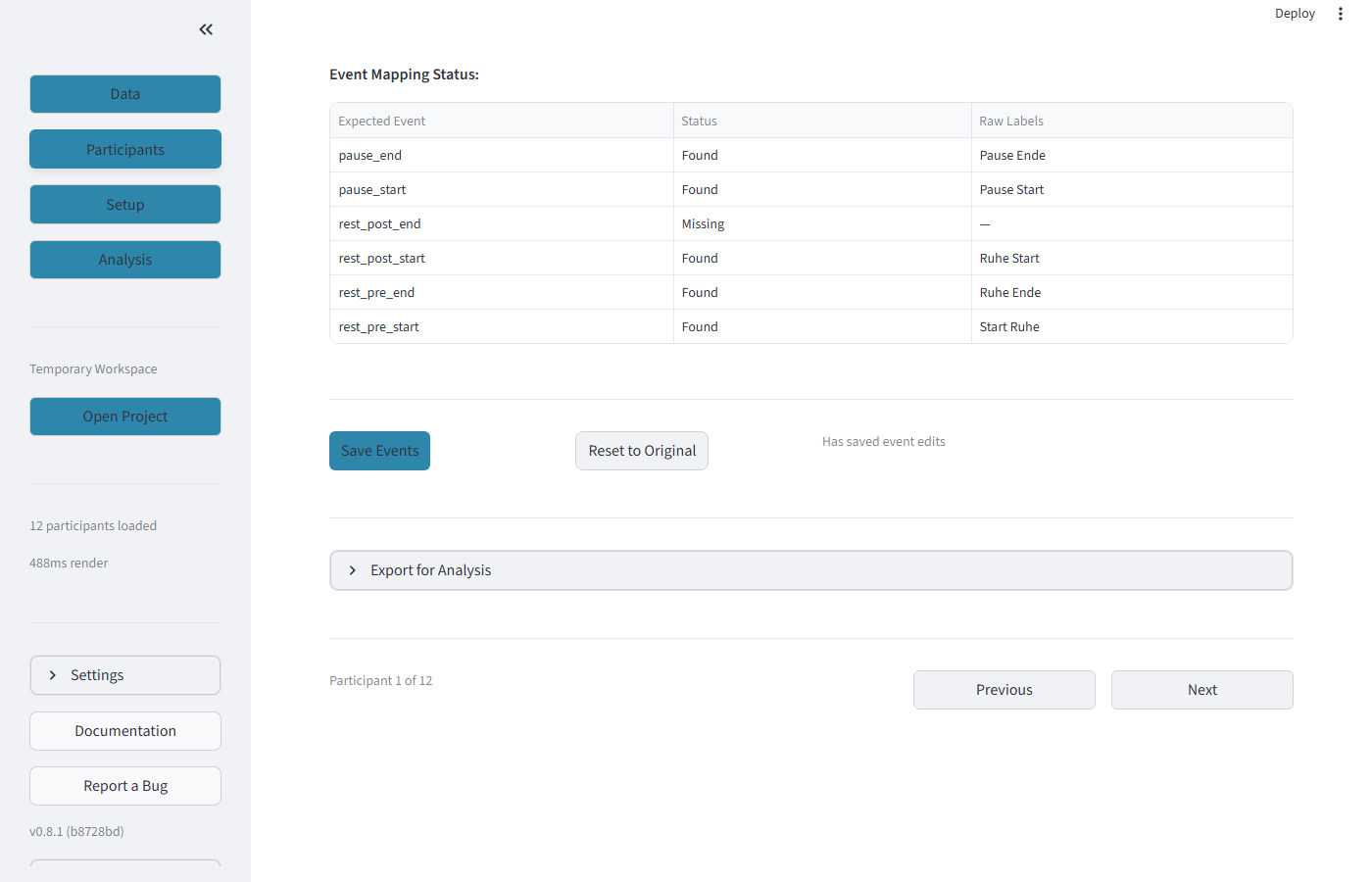
The Event Mapping Status table shows which expected events were detected. "Found" (green) means the event was matched. "Missing" (red) means no matching event exists — you may need to add it manually or update synonyms in Setup > Events.
| Button | What it does |
|---|---|
| Save Events | Persist all event changes to disk |
| Reset to Original | Undo all manual changes and restore original events |
4.9 Export for Analysis
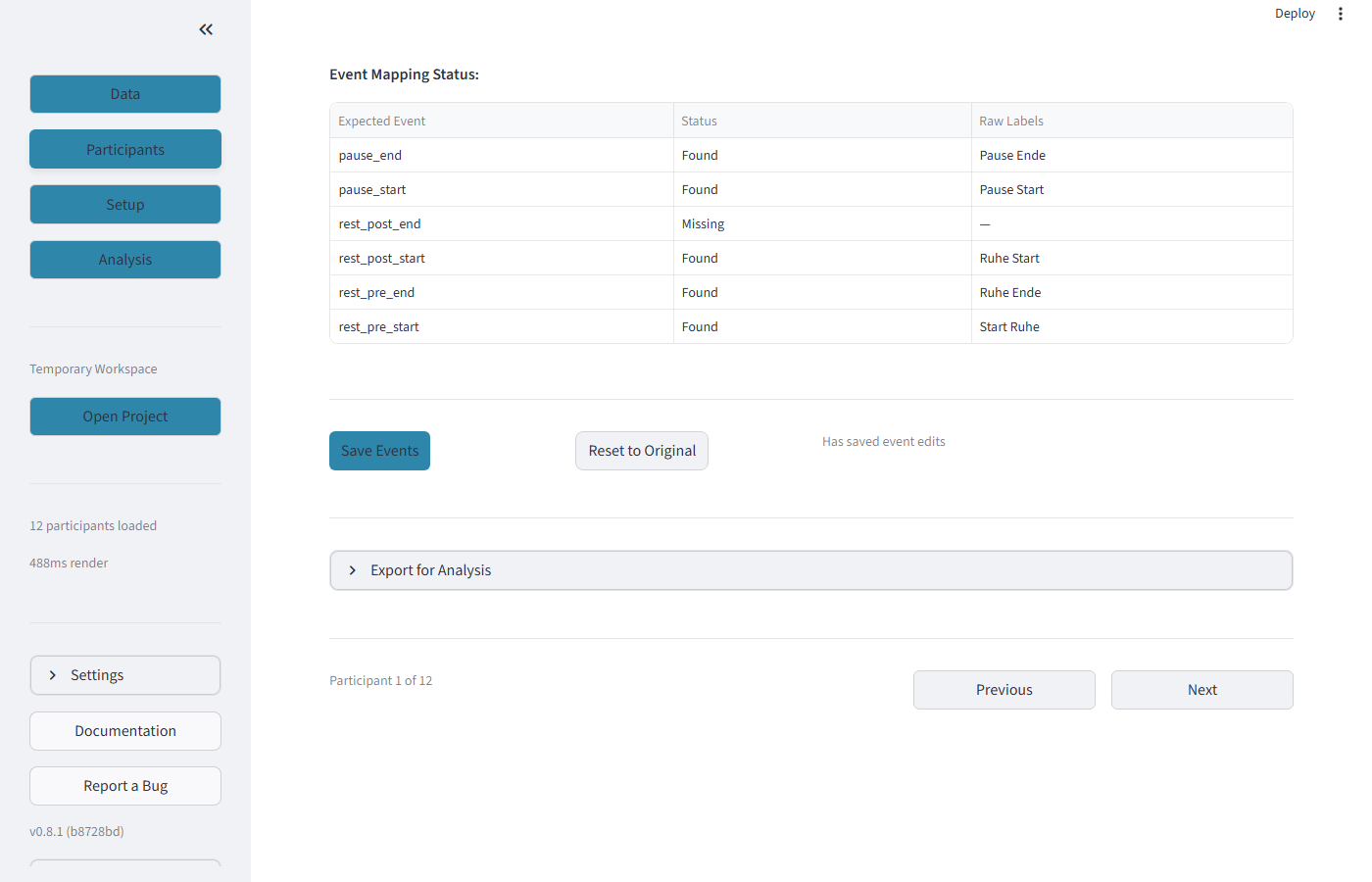
The Export for Analysis section saves a .rrational file containing corrected RR intervals, artifact indices, quality metrics, and a full audit trail. This file can be reloaded in the Analysis tab.
Quality Grading (Quigley 2024)
| Grade | Artifact Rate | Action |
|---|---|---|
| Excellent | <2% | Include as-is |
| Good | 2-5% | Include, apply correction |
| Fair | 5-10% | Include with caution |
| Poor | >10% | Exclude from analysis |
Step 5: Configure Study (Setup Tab)
Click "Setup" in the sidebar. Four sub-tabs are available via radio buttons: Events, Groups, Sequences, Sections.
5.1 Events
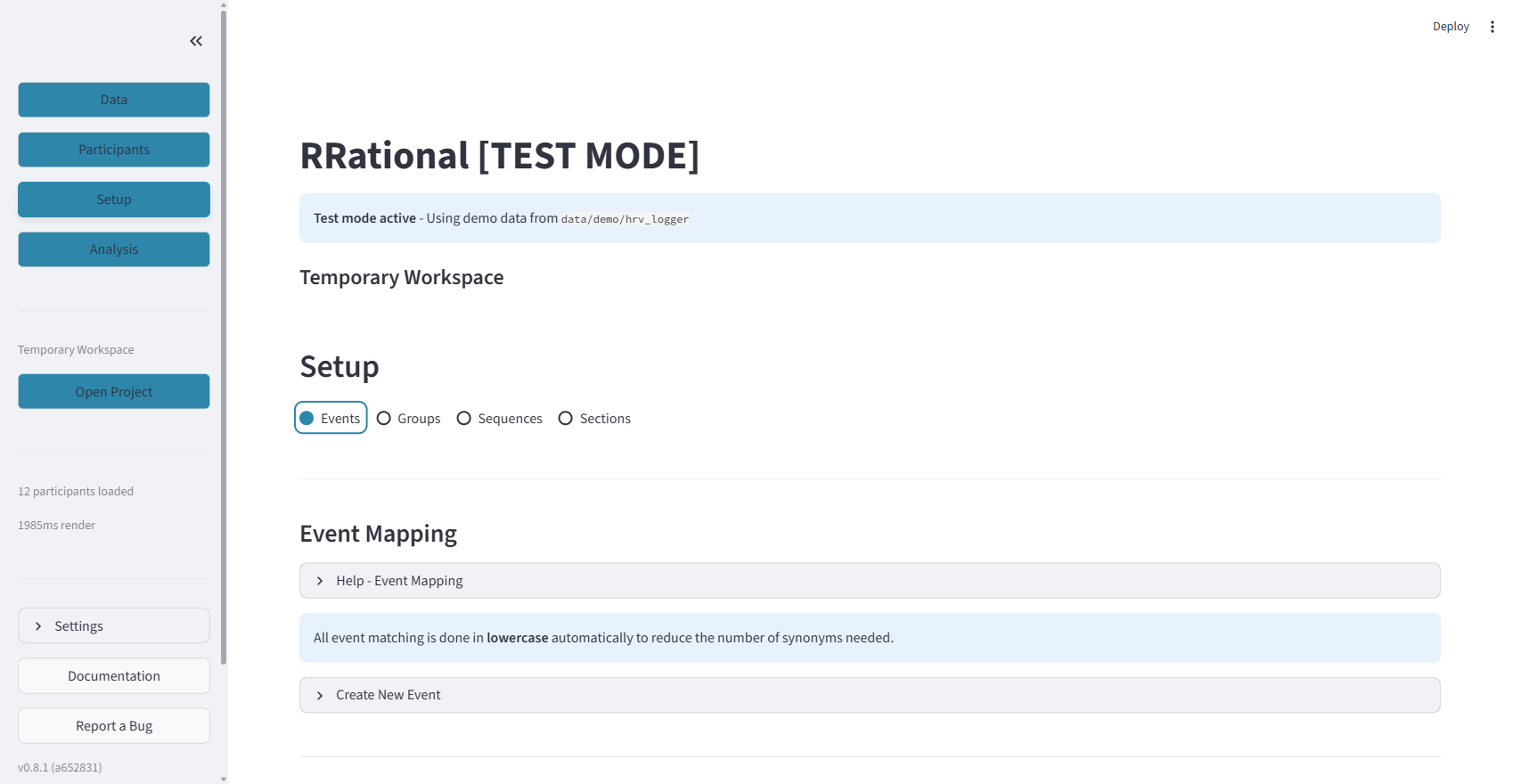
What you see: The Events sub-tab (selected in the radio buttons). The "Event Mapping" section with a help expander, an info bar about case-insensitive matching, and a "Create New Event" expander.
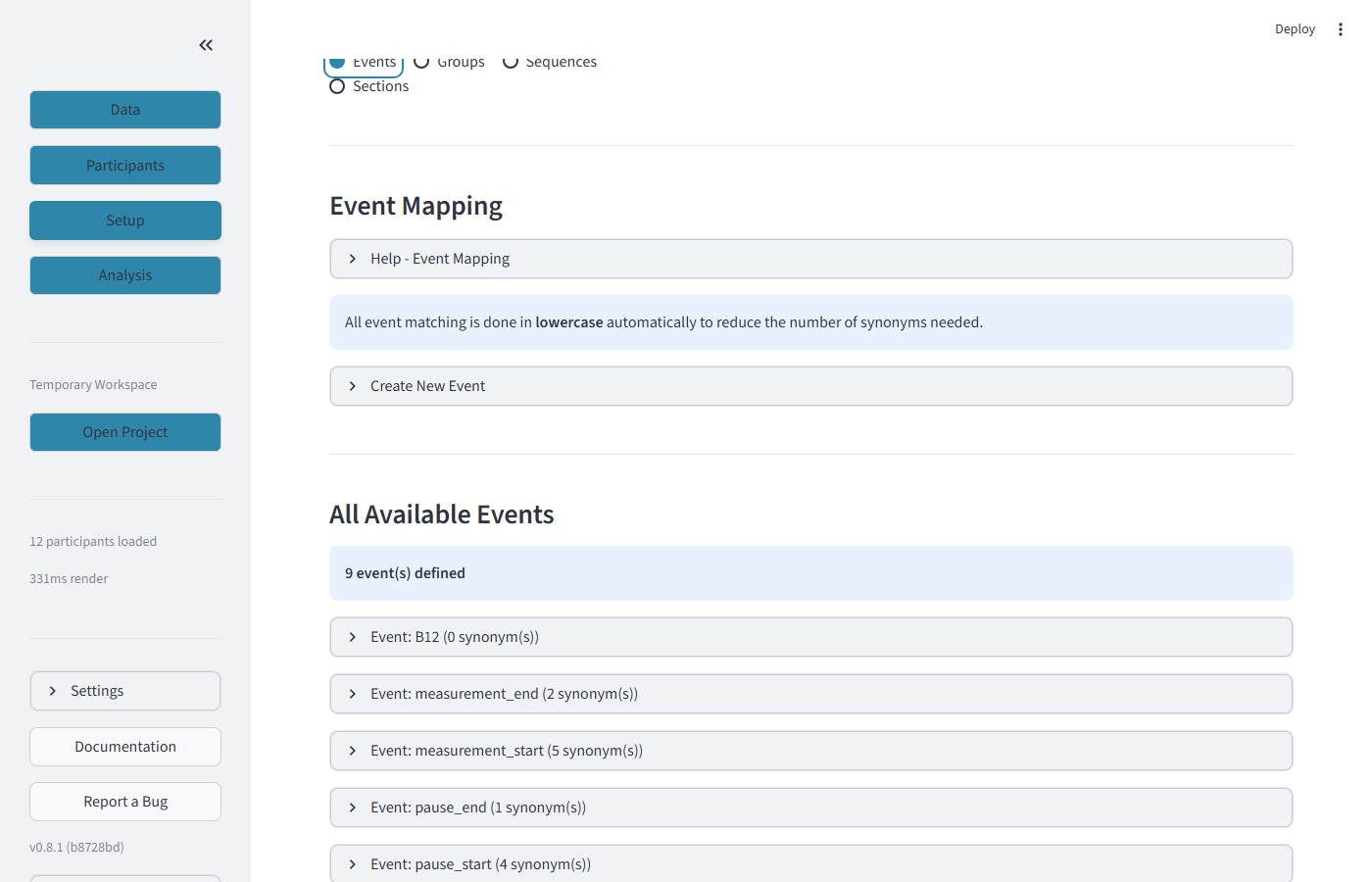
Scrolling down reveals the event definitions table. Each event has a canonical name (e.g., measurement_start), synonyms for fuzzy matching (comma-separated), and a regex pattern for advanced matching.
| Button | What it does |
|---|---|
| Create New Event | Add a new canonical event name with synonyms |
| Save Event Changes | Persist all changes to the event configuration |
| Download Events CSV | Export event definitions as CSV |
5.2 Groups
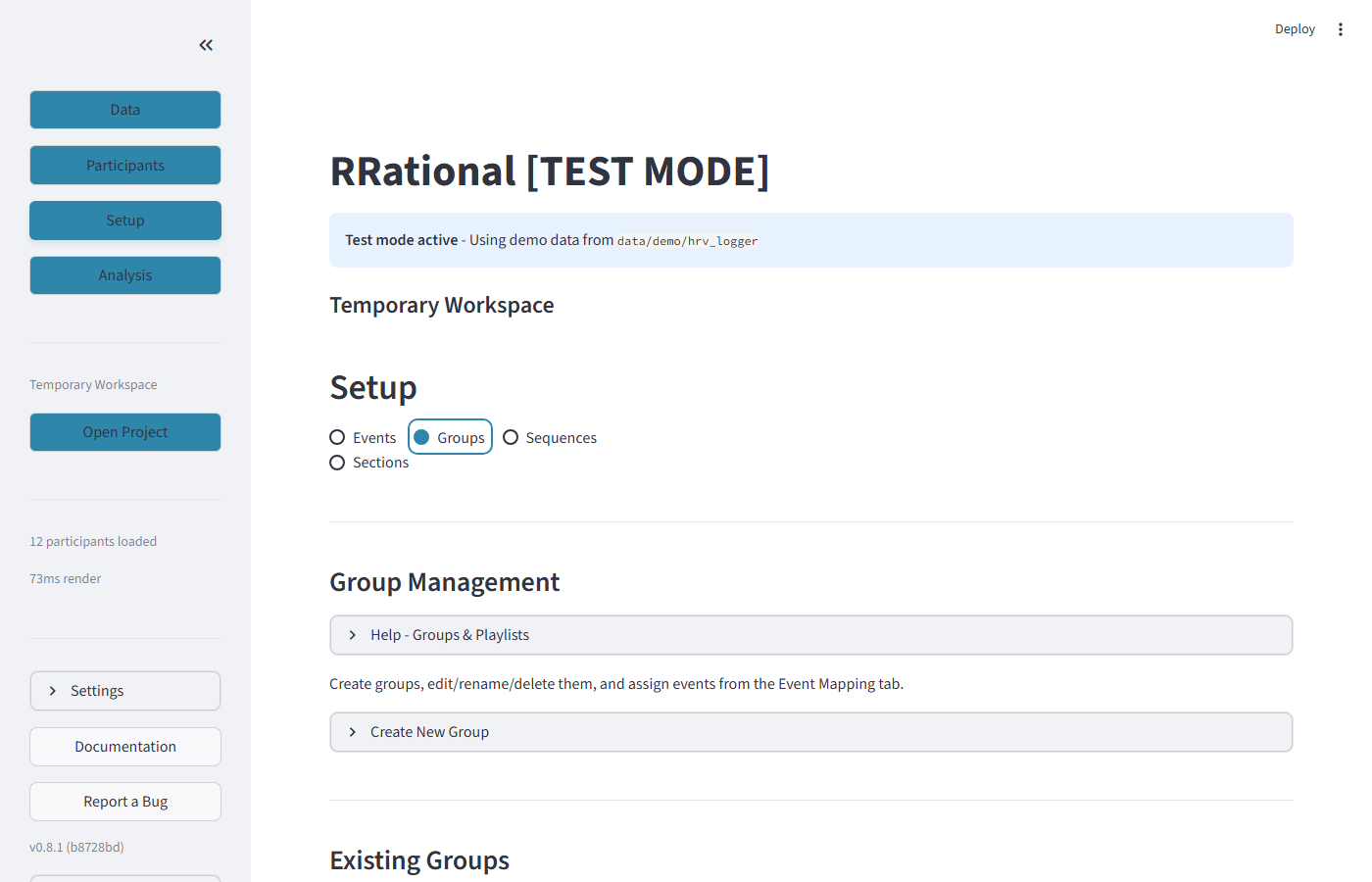
What you see: The Groups sub-tab showing "Group Management". A help expander explains groups. Below is "Create New Group" and a list of existing groups.
| Button | What it does |
|---|---|
| Create New Group | Add a new study group (e.g., "control", "experimental") |
| Save Changes | Save group label and event assignments |
| Delete | Remove a group (does not delete participant data) |
5.3 Event Sequences
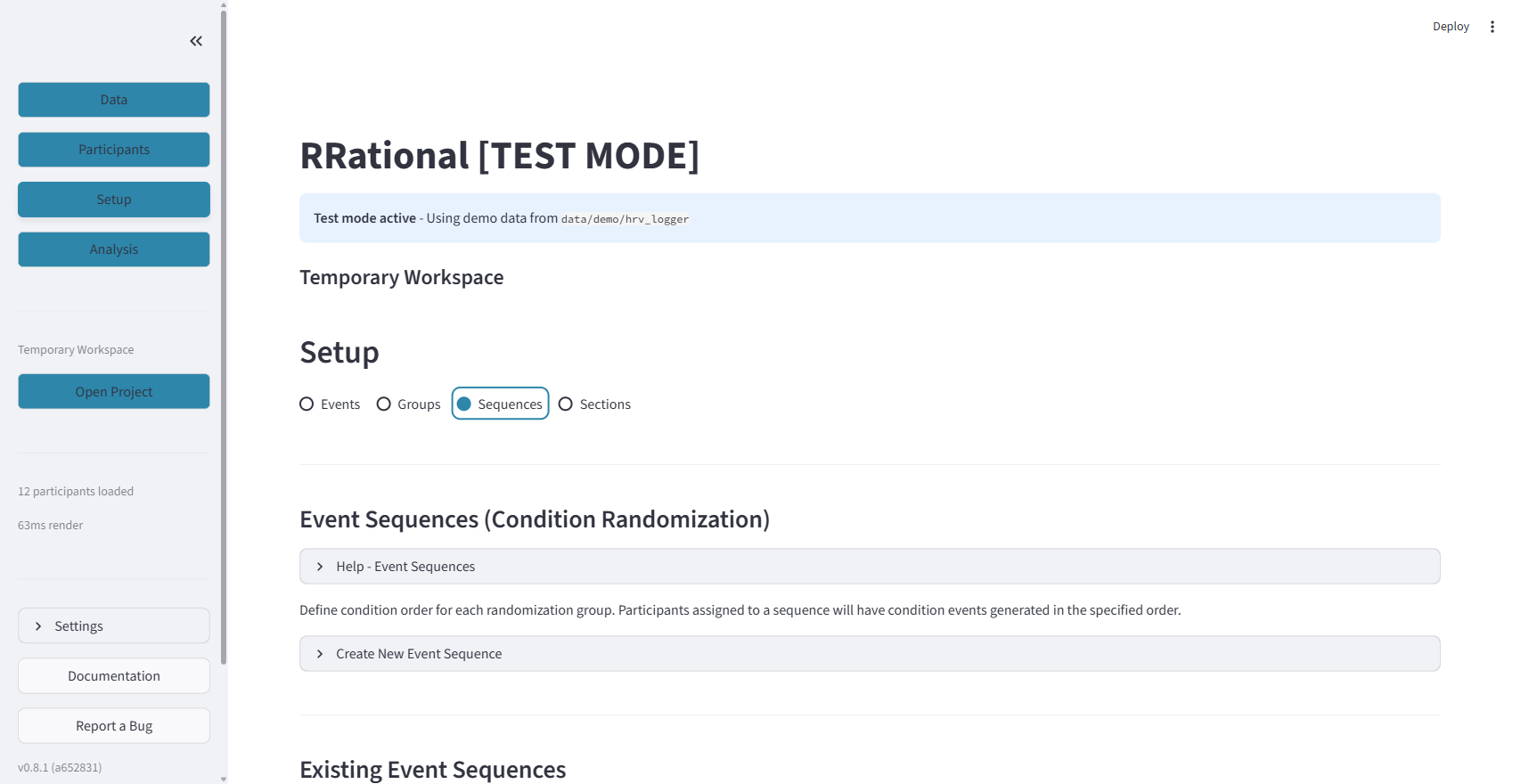
What you see: The Sequences sub-tab showing "Event Sequences (Condition Randomization)". This is where you define the order of repeating conditions for randomization studies.
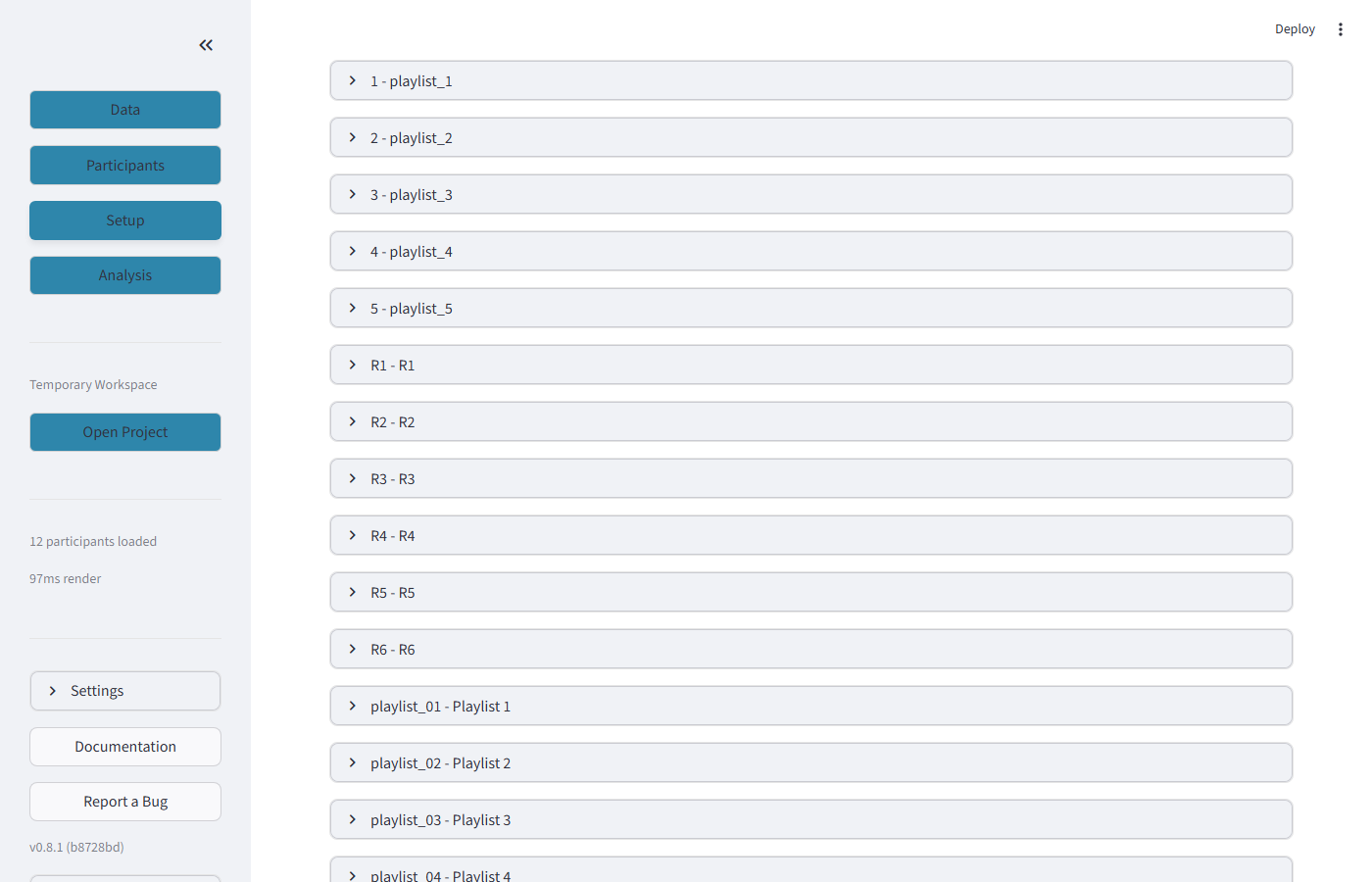
Each sequence shows its label, condition order as arrows (e.g., "music_1 → music_2 → music_4 → music_3"), and buttons to edit or delete. Participants assigned to this sequence are listed below.
| Button | What it does |
|---|---|
| Create Event Sequence | Add a new sequence with condition order |
| Save Changes | Update label and condition order |
| Delete | Remove the sequence and unassign participants |
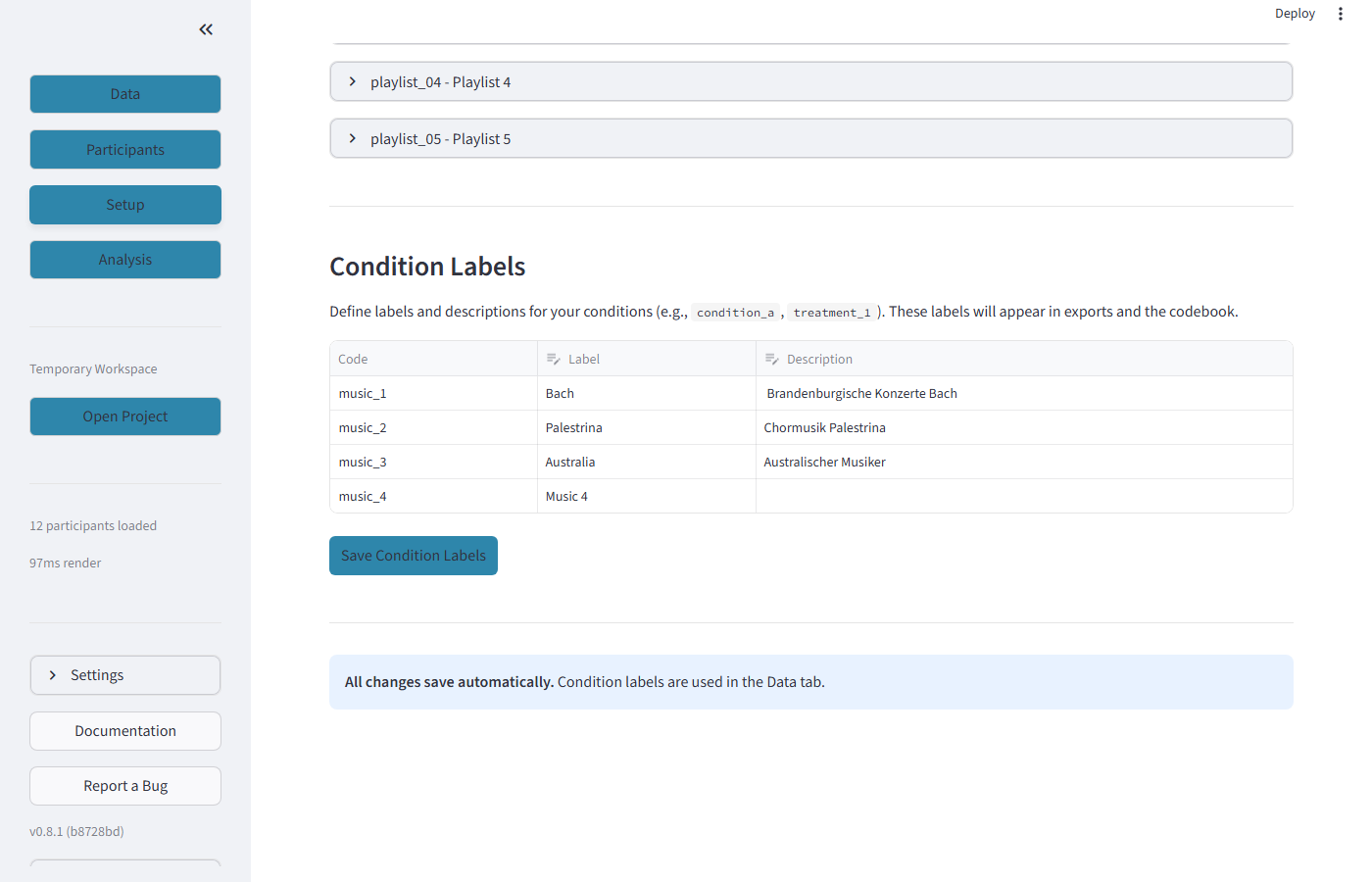
Below the sequences, the Condition Labels table lets you define display names. For example, internal code "music_1" can be labeled "Bach" with description "Brandenburgische Konzerte Bach".
| Button | What it does |
|---|---|
| Save Condition Labels | Persist label and description changes |
5.4 Sections
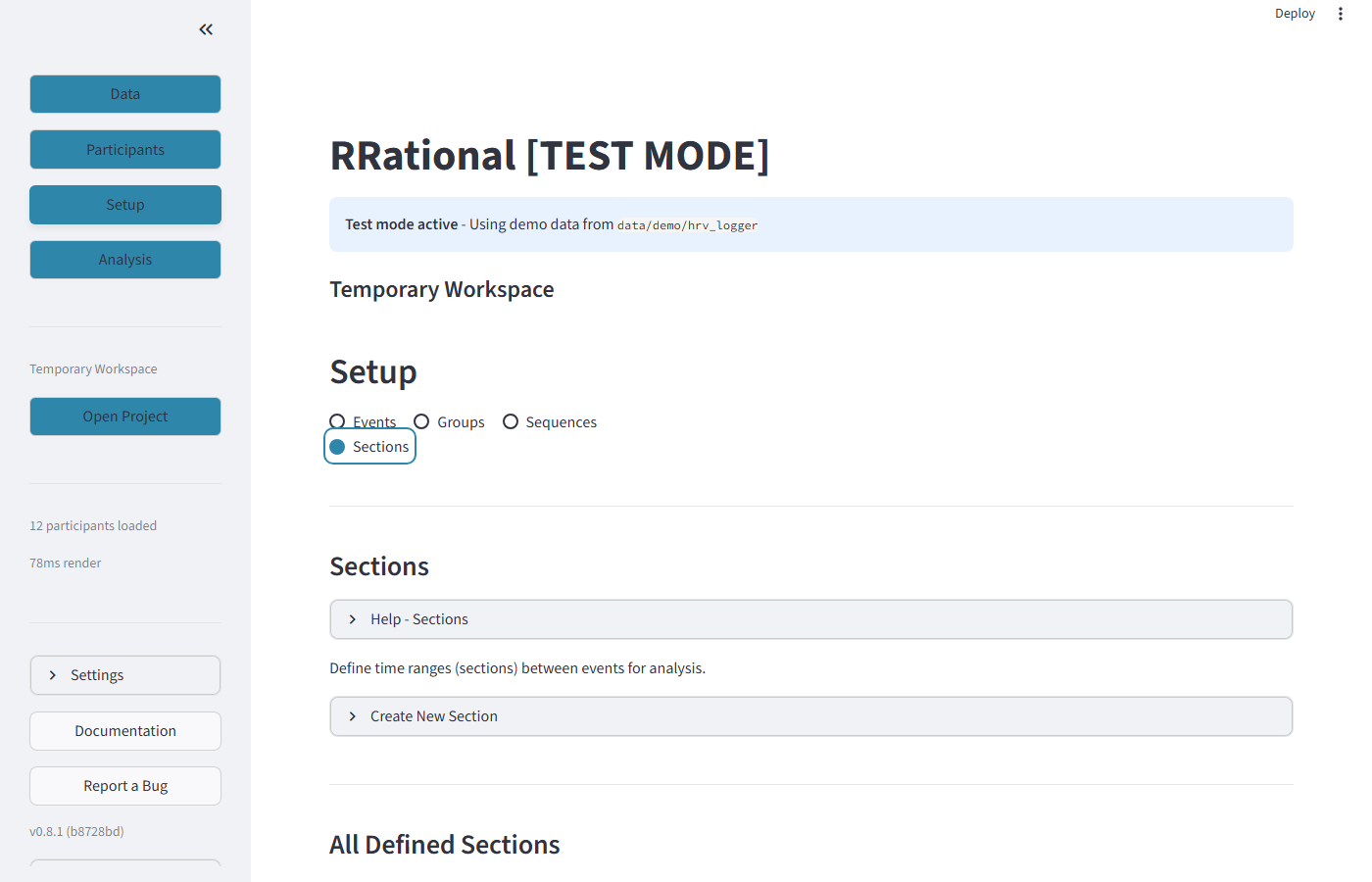
What you see: The Sections sub-tab where you define analysis time windows. Each section has a Code, Label, Start/End Event(s), expected Duration, and Tolerance.
| Field | What it means |
|---|---|
| Code | Internal identifier (e.g., baseline) |
| Label | Display name (e.g., "Baseline Rest") |
| Start Event(s) | Comma-separated event names that start this section |
| End Event(s) | Comma-separated event names that end this section (first match wins) |
| Duration (min) | Expected duration for validation |
| Tolerance (min) | How much the actual duration may deviate |
Step 6: Analyze HRV (Analysis Tab)
Click "Analysis" in the sidebar.
6.1 Choose Analysis Mode
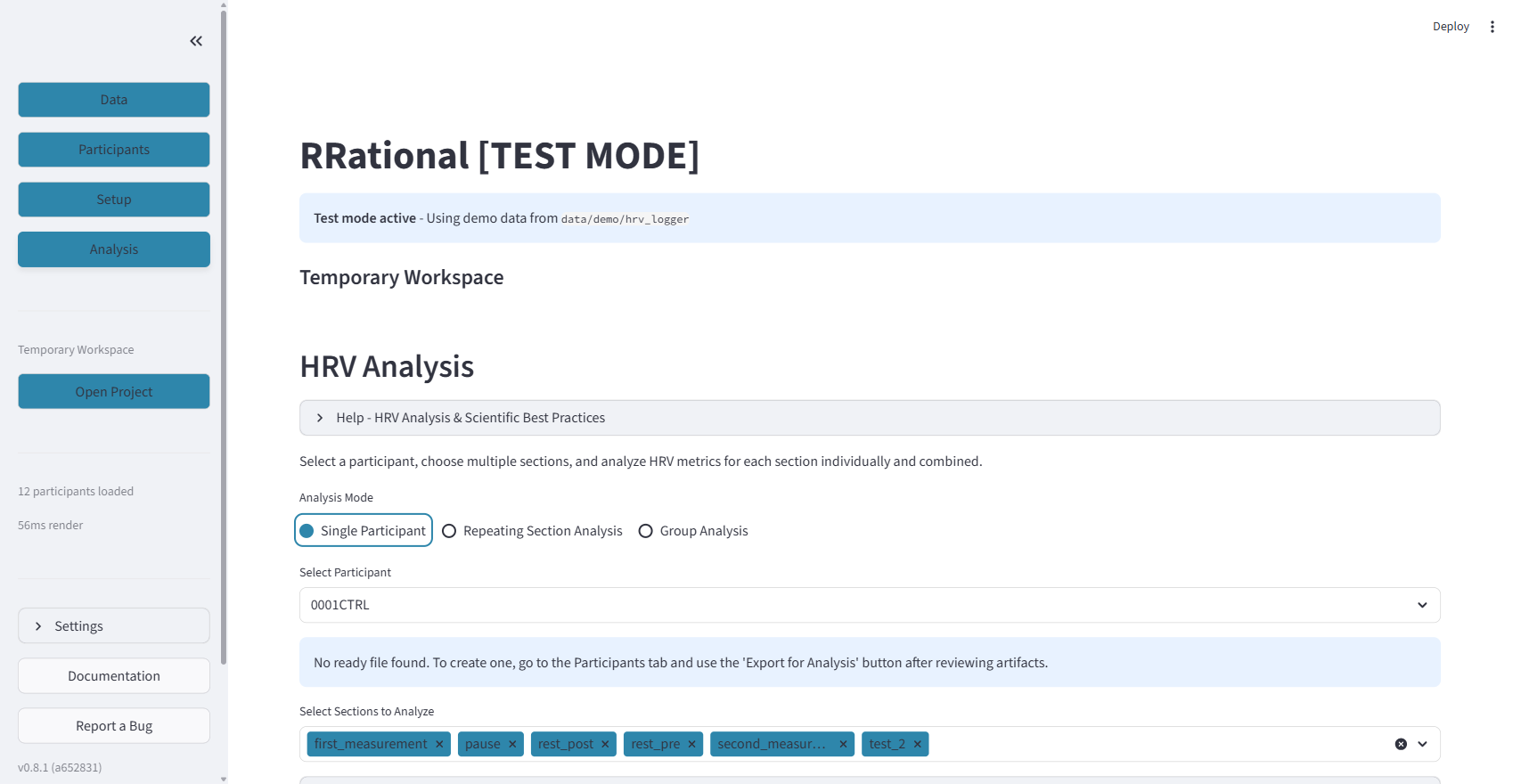
What you see: Four radio buttons for analysis mode, a participant selector, and a section multiselect. The available sections are pre-selected based on validation.
Frequency-domain pipeline selector
Above the mode selector, a single global Frequency-domain pipeline dropdown (NeuroKit2 default vs Kubios-compatible) applies to all four analysis modes. See the Kubios Compatibility Guide.
| Mode | What it does | When to use |
|---|---|---|
| Single Participant | Analyze one participant's sections individually | Detailed per-participant analysis |
| Repeating Section Analysis | Protocol-based repeating condition comparison | Studies with repeating conditions (e.g., music, stimuli) |
| Group Analysis | Batch comparison across study groups | Group-level statistical comparisons |
| Sequence Comparison | Compare HRV across event sequences and conditions | Counterbalanced designs, condition-order effects |
6.2 Single Participant Settings
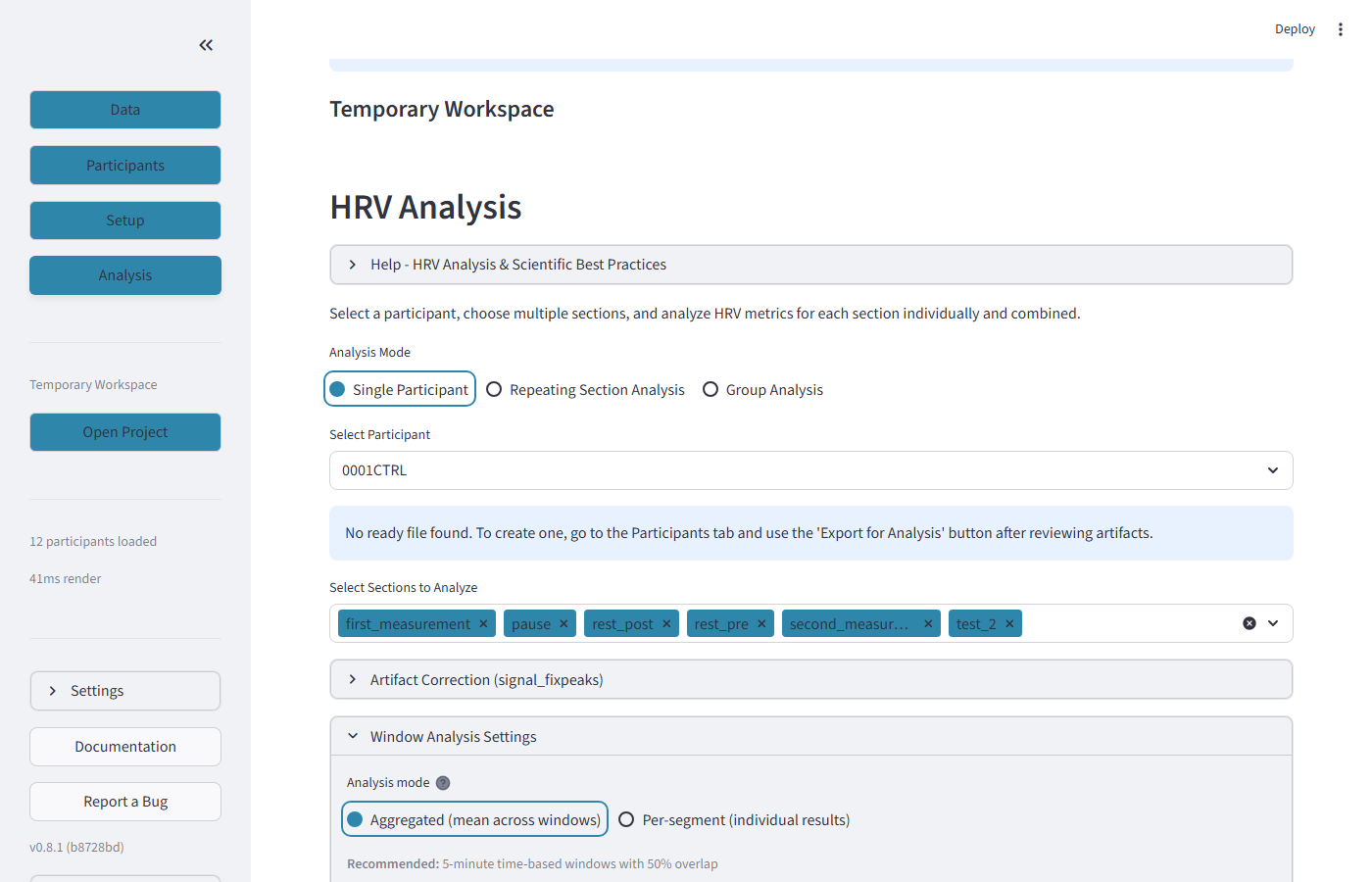
What you see: Participant dropdown, section multiselect (all validated sections pre-selected), artifact correction expander, and analysis mode options (Aggregated vs Per-segment).
| Setting | What it does |
|---|---|
| Select Participant | Choose which participant to analyze |
| Select Sections to Analyze | Choose which sections to include (defaults to all validated) |
| Artifact Correction | Enable NeuroKit2 Kubios algorithm for artifact correction |
| Aggregated | One result per section (combines all windows) |
| Per-segment | Separate results for each time-based segment within a section |
| Analyze HRV | Run the analysis and show results |
6.3 Repeating Section Analysis
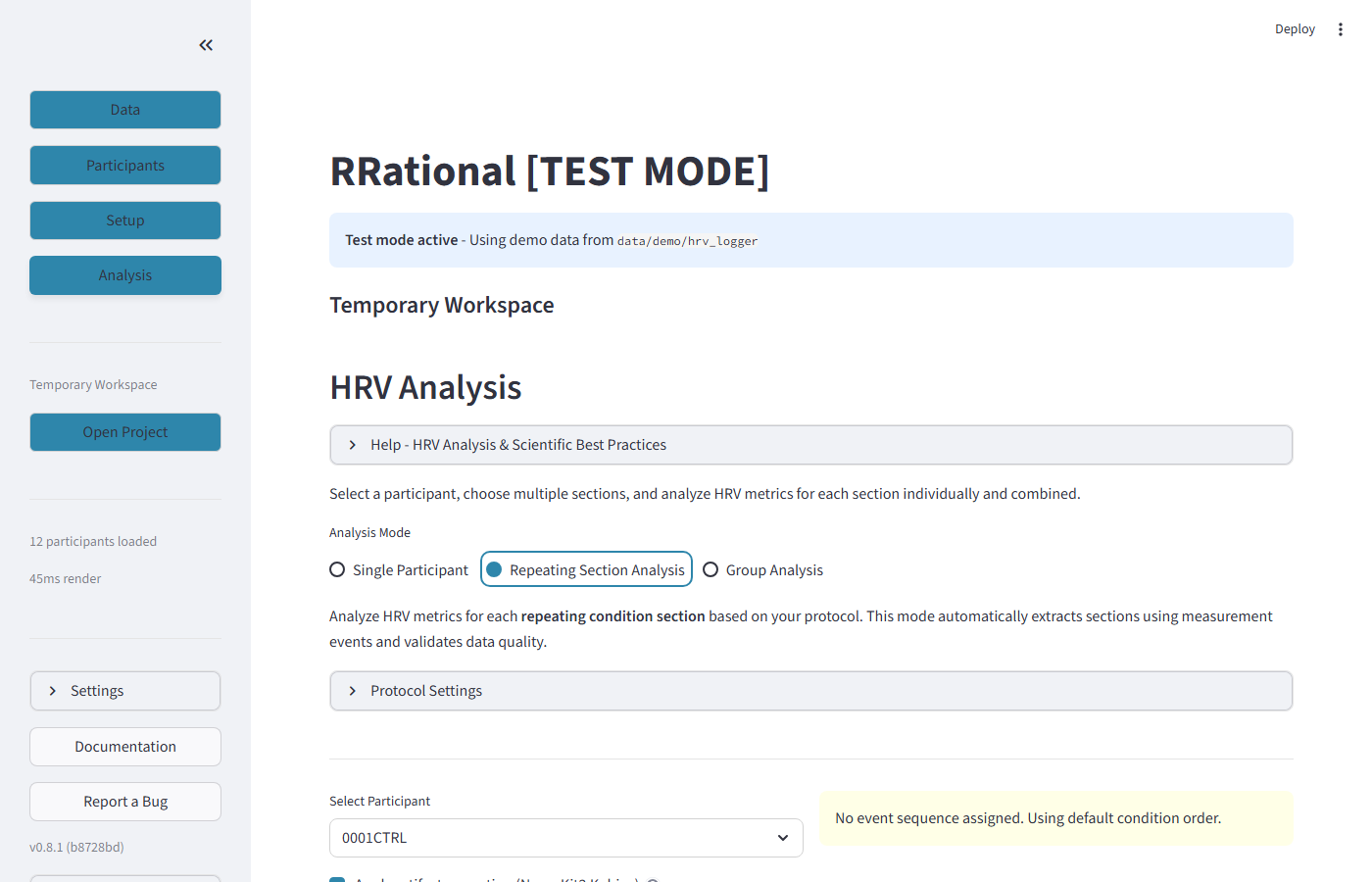
What you see: The "Repeating Section Analysis" mode with Protocol Settings expander and participant/sequence selection. A warning appears if no event sequence is assigned.
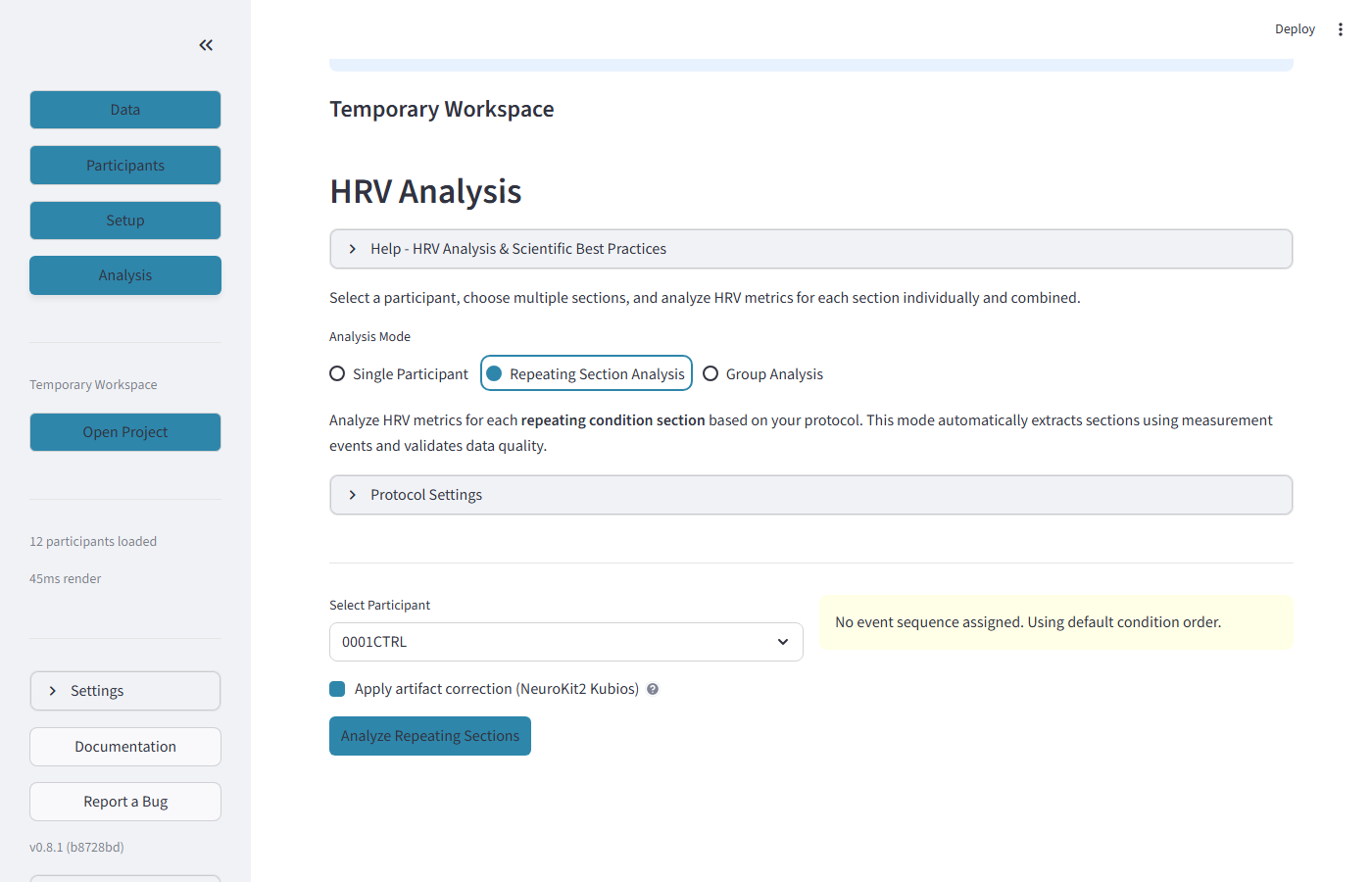
The Protocol Settings define the expected recording structure: total duration, section length, number of pre/post-pause sections, minimum valid duration and beats, and how to handle duration mismatches.
6.4 Group Analysis
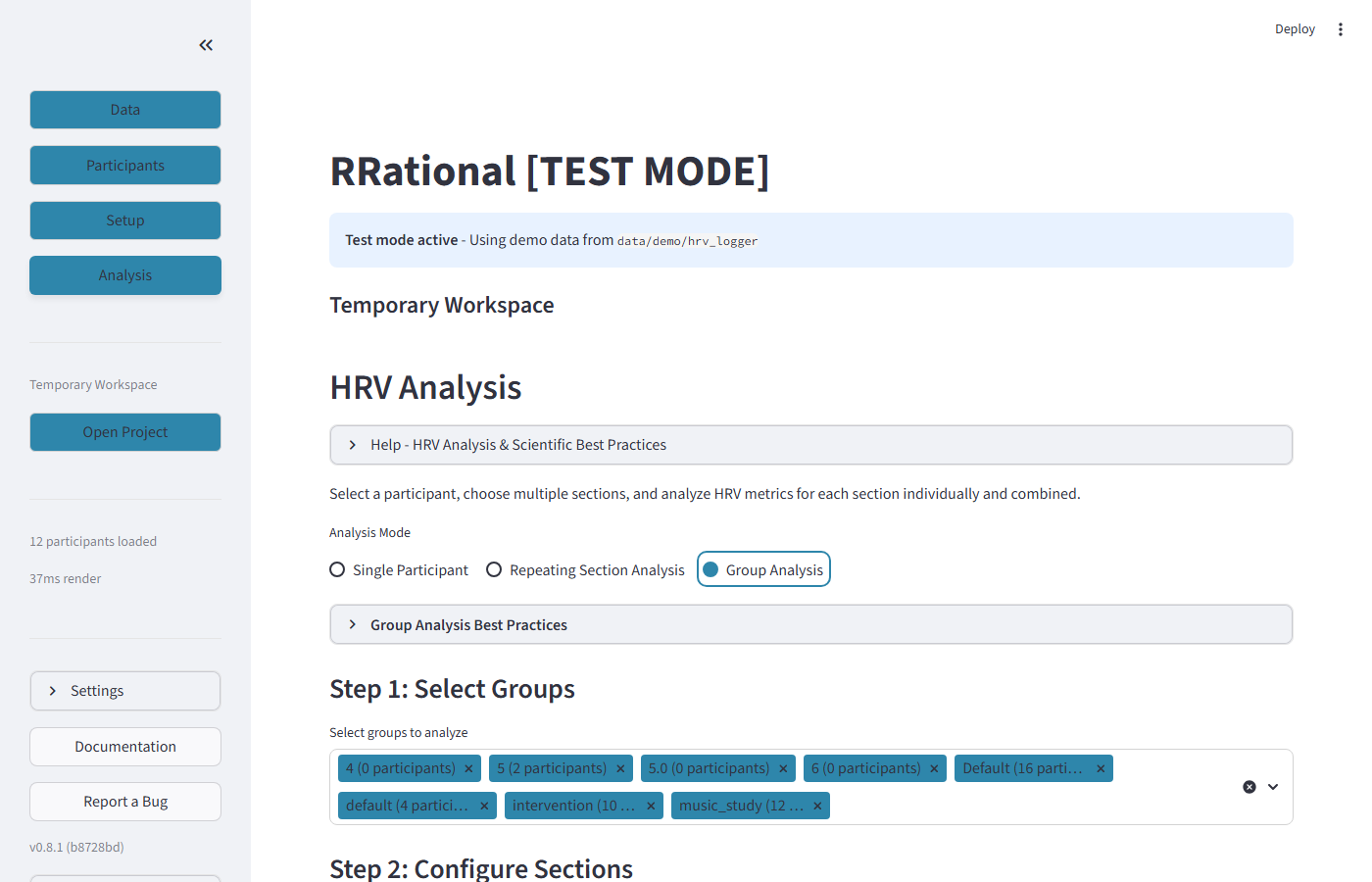
What you see: Group Analysis mode where you select two or more study groups, choose a metric preset, and run a batch comparison across all participants in those groups.
Group Analysis reads each participant's .rrational file once and aggregates the per-section metrics across the group. Results appear in three tabs:
Data tab — a descriptive table of per-group means and dispersion for every selected metric, with CSV export.
Statistics tab — descriptive statistics plus a Hypothesis Tests panel. The appropriate test is selected automatically based on the number of groups and a normality check (Shapiro-Wilk):
| Groups | Distribution | Test | Effect size |
|---|---|---|---|
| 2 | normal | Welch's t-test | Cohen's d |
| 2 | non-normal | Mann-Whitney U | — |
| 3+ | normal | one-way ANOVA | η² (eta-squared) |
| 3+ | non-normal | Kruskal-Wallis | η² |
When several metrics are tested together, p-values are adjusted for multiple comparisons (Holm by default; Bonferroni and Benjamini-Hochberg FDR are also available). Frequency-domain metrics (LF, HF, VLF, Total Power) are log-transformed before parametric testing because their distributions are log-normal.
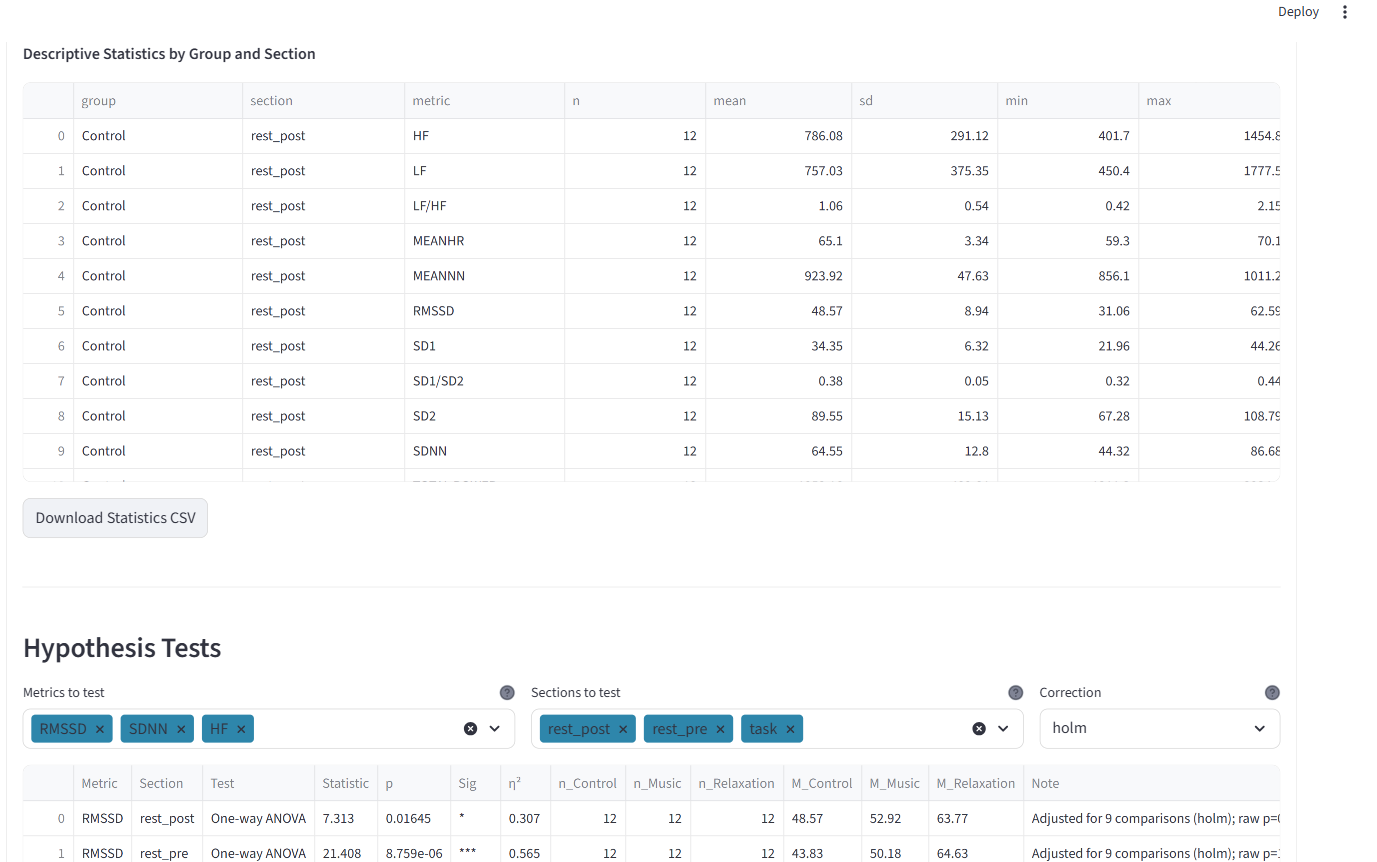
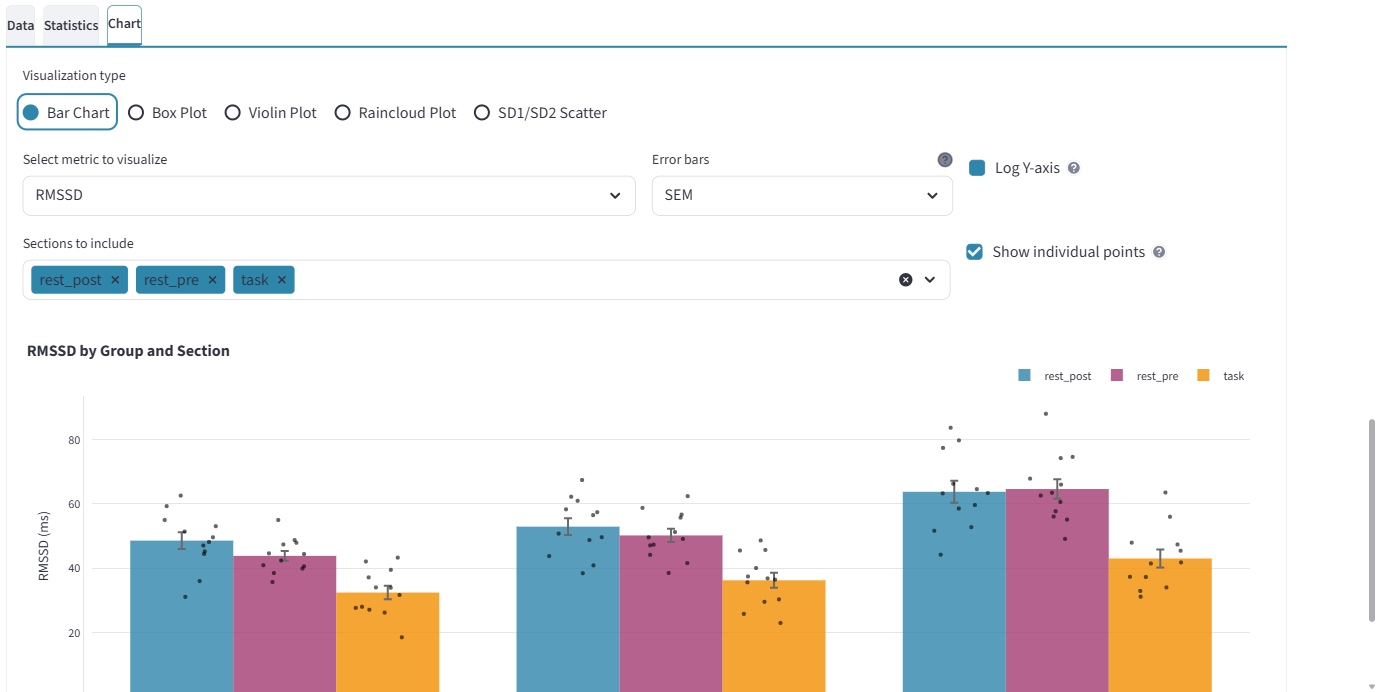
Chart tab — bar charts, box plots, violin plots, raincloud plots and SD1/SD2 scatter, with options to:
- choose the error-bar type (SEM default, SD, CI95, or None),
- overlay individual data points behind the summary statistics,
- use a log Y-axis (enabled automatically for log-normal metrics such as LF/HF).
Cached results. A completed analysis can be saved to the project (data/processed/group_analysis_results.yml). When a cache exists, a "Cached results available" banner offers Load (instant) or Delete, with the last-saved timestamp; the analysis can also be exported as an HTML report. Because each .rrational file is read only once per participant, a fresh run is substantially faster than per-metric loading.
6.5 Sequence Comparison
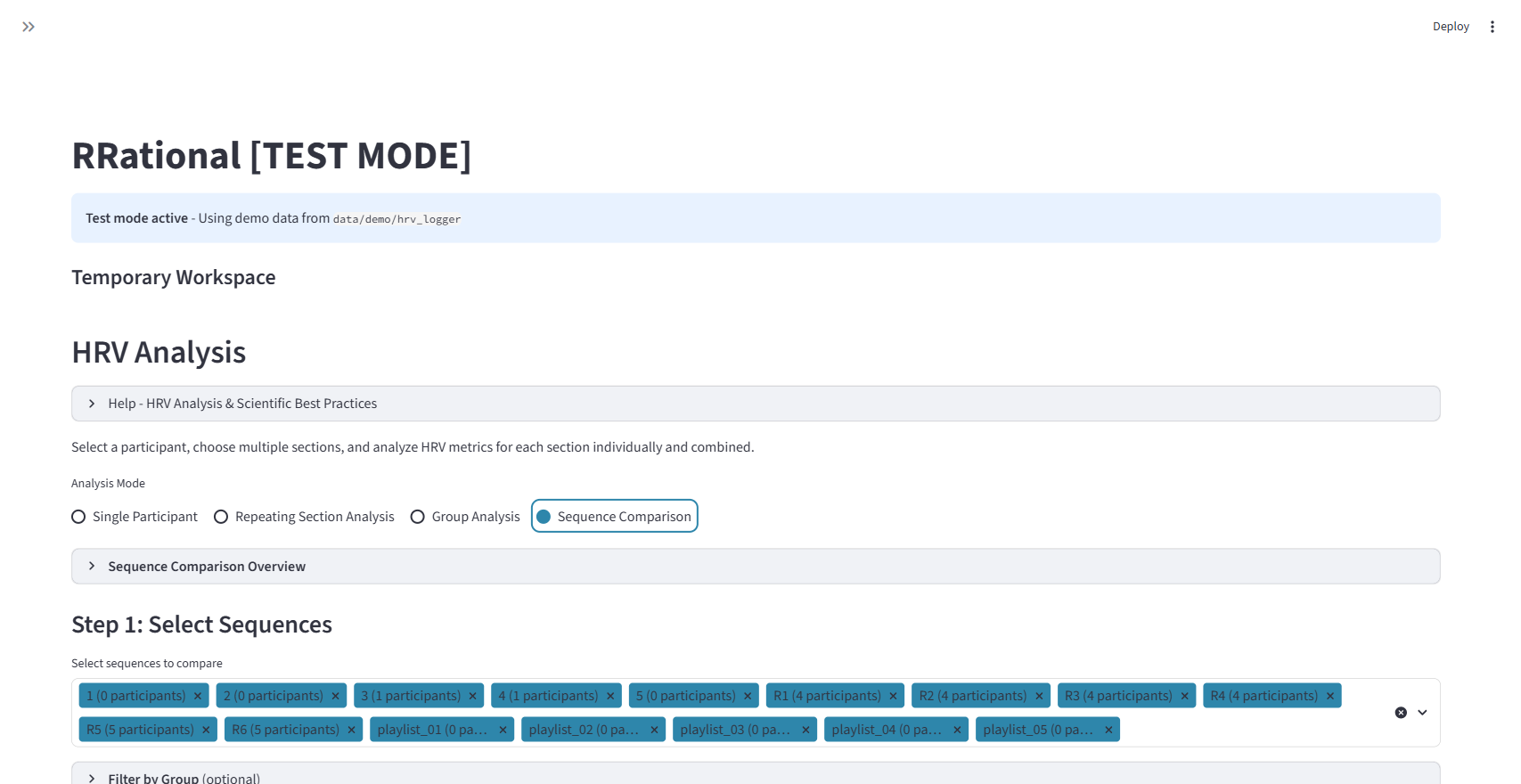
What you see: The "Sequence Comparison" mode with all event sequences listed, showing participant counts per sequence. An optional "Filter by Group" expander allows cross-group comparisons.
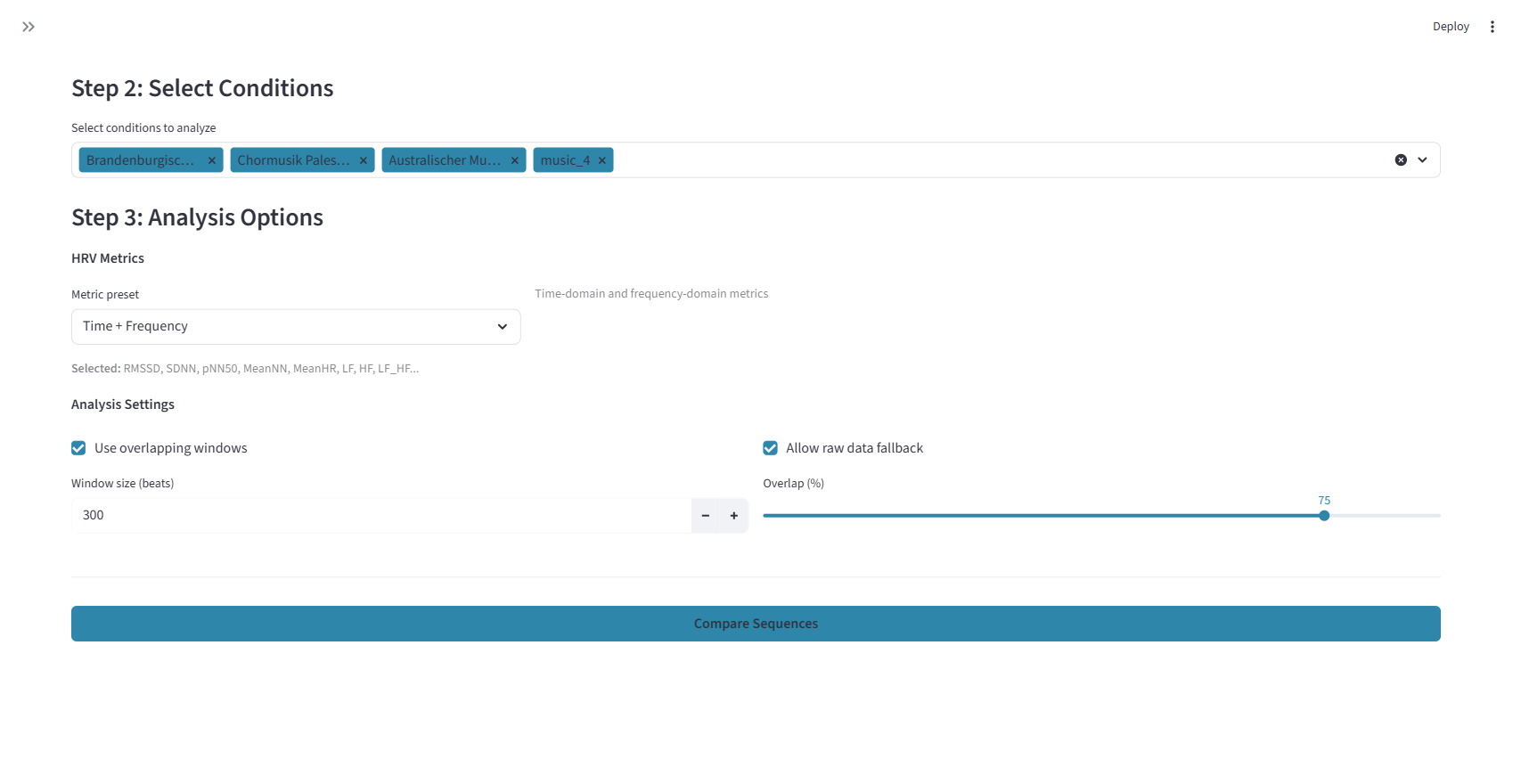
Step 2 shows conditions to compare (extracted from sequence definitions). Step 3 provides metric presets and analysis settings similar to Group Analysis.
| Setting | What it does |
|---|---|
| Select Sequences | Choose which event sequences to compare |
| Filter by Group | Optionally add group dimension to comparisons |
| Select Conditions | Choose which experimental conditions to analyze |
| Compare Sequences | Run the comparison and display results with charts |
Results are displayed in Data, Statistics, and Chart tabs, using the same chart types as Group Analysis (bar charts, box plots, violin plots, raincloud plots, SD1/SD2 scatter).
6.6 Power Spectrum (PSD)
In the Participants tab, below the tachogram, an expandable Power Spectrum (PSD) section shows the frequency-domain analysis for the current participant.
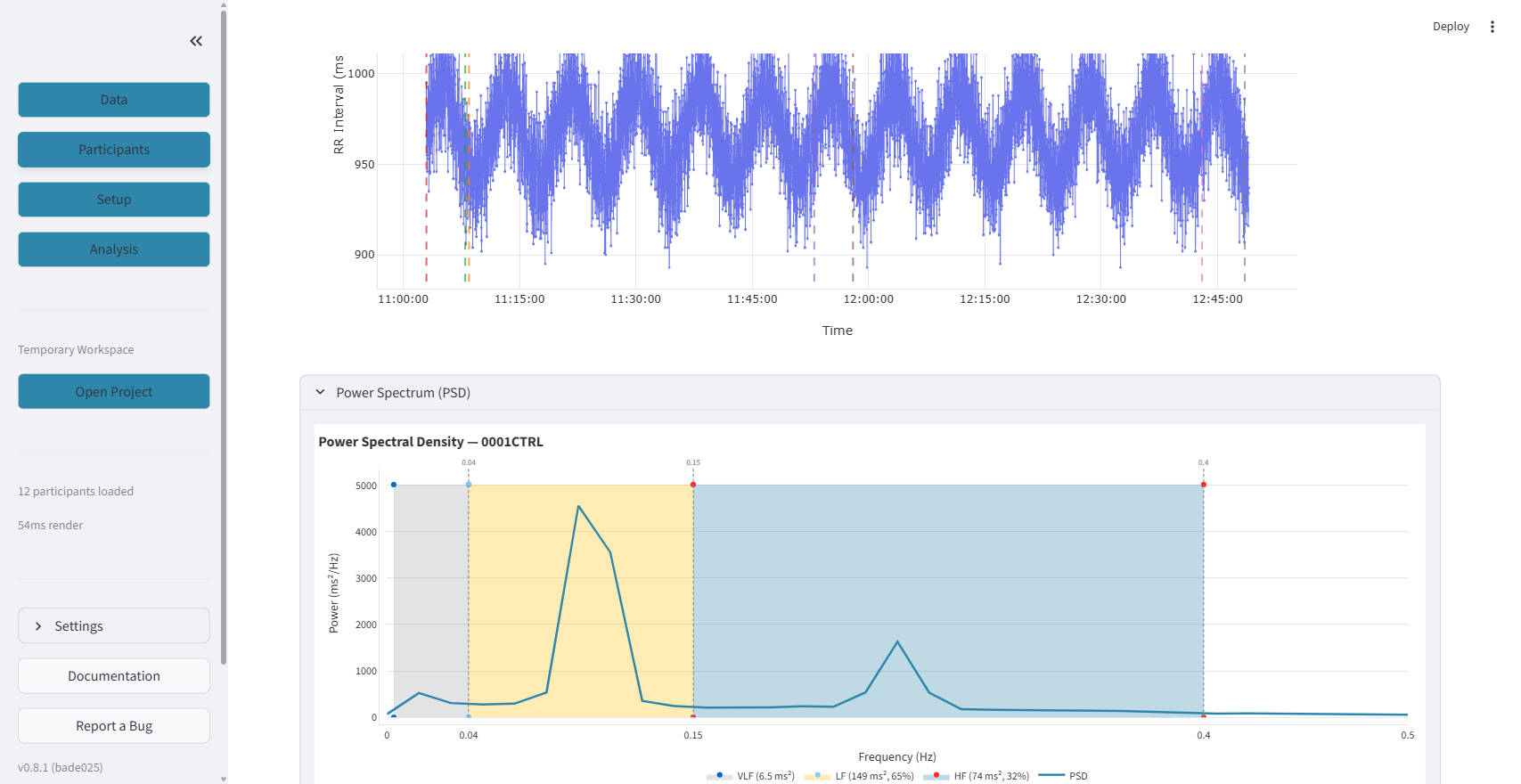
The Power Spectral Density plot shows VLF (gray), LF (yellow), and HF (blue) frequency bands with power values and percentages. The PSD line shows the Welch-estimated power distribution.
| Band | Frequency Range | What it reflects |
|---|---|---|
| VLF | 0.003–0.04 Hz | Thermoregulation, hormonal |
| LF | 0.04–0.15 Hz | Both sympathetic and parasympathetic + baroreflex |
| HF | 0.15–0.4 Hz | Parasympathetic (vagal) activity |
Note
The PSD requires at least 100 beats (300+ recommended). It uses the full (non-downsampled) RR data for accurate frequency estimation.
6.7 Report Export
Analysis reports can be downloaded in two formats:
| Format | What it includes |
|---|---|
| Markdown (.md) | Text-based report with tables — suitable for research documentation |
| HTML | Standalone file with professional styling, summary cards, and optionally embedded charts — suitable for sharing and printing |
For Single Participant analysis, reports include data source, cleaning parameters, artifact correction details, section information, and all computed HRV metrics.
For Group Analysis, HTML reports include participant counts, descriptive statistics tables, and individual results — all in a single self-contained file.
6.8 HRV Metrics Reference
| Metric | Domain | What It Tells You |
|---|---|---|
| RMSSD | Time | Beat-to-beat variability — primary parasympathetic marker |
| SDNN | Time | Overall HRV — reflects all sources of variability |
| pNN50 | Time | Percentage of successive intervals differing >50 ms |
| Mean HR | Time | Average heart rate in beats per minute |
| LF | Frequency | Low-frequency power (0.04-0.15 Hz) |
| HF | Frequency | High-frequency power (0.15-0.4 Hz) — parasympathetic |
| LF/HF | Frequency | Ratio — not "sympathovagal balance" (Quigley 2024) |
| SD1 | Nonlinear | Short-term variability (Poincare plot) |
| SD2 | Nonlinear | Long-term variability (Poincare plot) |
Step 7: Export Results
CSV Export
In the Analysis tab, click "Download HRV Results (CSV)" to export a table with:
- One row per participant per section
- All computed HRV metrics
- Quality indicators (beat count, artifact rate, grade)
- Ready for import into R, SPSS, Python, or Excel
Ready for Analysis Export
In the Participants tab sidebar, click "Export for Analysis" to save a .rrational file containing:
- Corrected RR intervals
- Artifact indices and categories
- Quality metrics per segment
- Full audit trail (detection method, parameters, exclusion zones)
Sidebar Reference
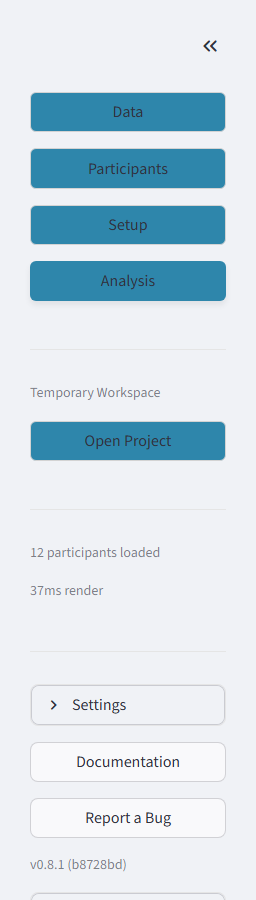
The sidebar bottom shows: Settings expander, Documentation button (links to rrational.readthedocs.io), Report a Bug button (links to GitHub Issues), and the version number with git commit hash (e.g., "v0.9.3 (a1b2c3d)").
Publication Checklist
Required for HRV Papers (Quigley 2024)
- Recording device and app used
- Recording duration per condition
- Artifact detection method (e.g., "Lipponen & Tarvainen 2019")
- Artifact correction method (e.g., "Kubios algorithm via NeuroKit2")
- Artifact rate per condition (mean ± SD)
- Number of excluded segments and exclusion criteria
- Beat count per condition
- Segment duration and overlap settings
- Which HRV metrics and why
Keyboard Shortcuts
| Key | Action | Context |
|---|---|---|
I |
Toggle Signal Inspection mode / zoom | RR plot |
R |
Reset zoom | Signal Inspection mode |
Left / Right |
Pan the zoomed view | Signal Inspection zoom |
Troubleshooting
| Problem | Solution |
|---|---|
| "No data loaded" | Check files are in data/raw/ subfolder, verify ID pattern in Import Settings |
| "Section not detected" | Map events in Setup > Events, ensure start AND end events exist |
| "No validated sections found" | Go to Participants > Section Validation, click Save |
| Slow performance | Reduce plot resolution in Settings, close browser tabs |
For installation issues, see Installation Guide.